

Meet your VPS Control Panel
Our redesigned control panel splits daily tasks into tabs: Dashboard, Installation, Traffic, Settings, rDNS, Network, Upgrades while a quick-action column on the left keeps power and console controls only one click away.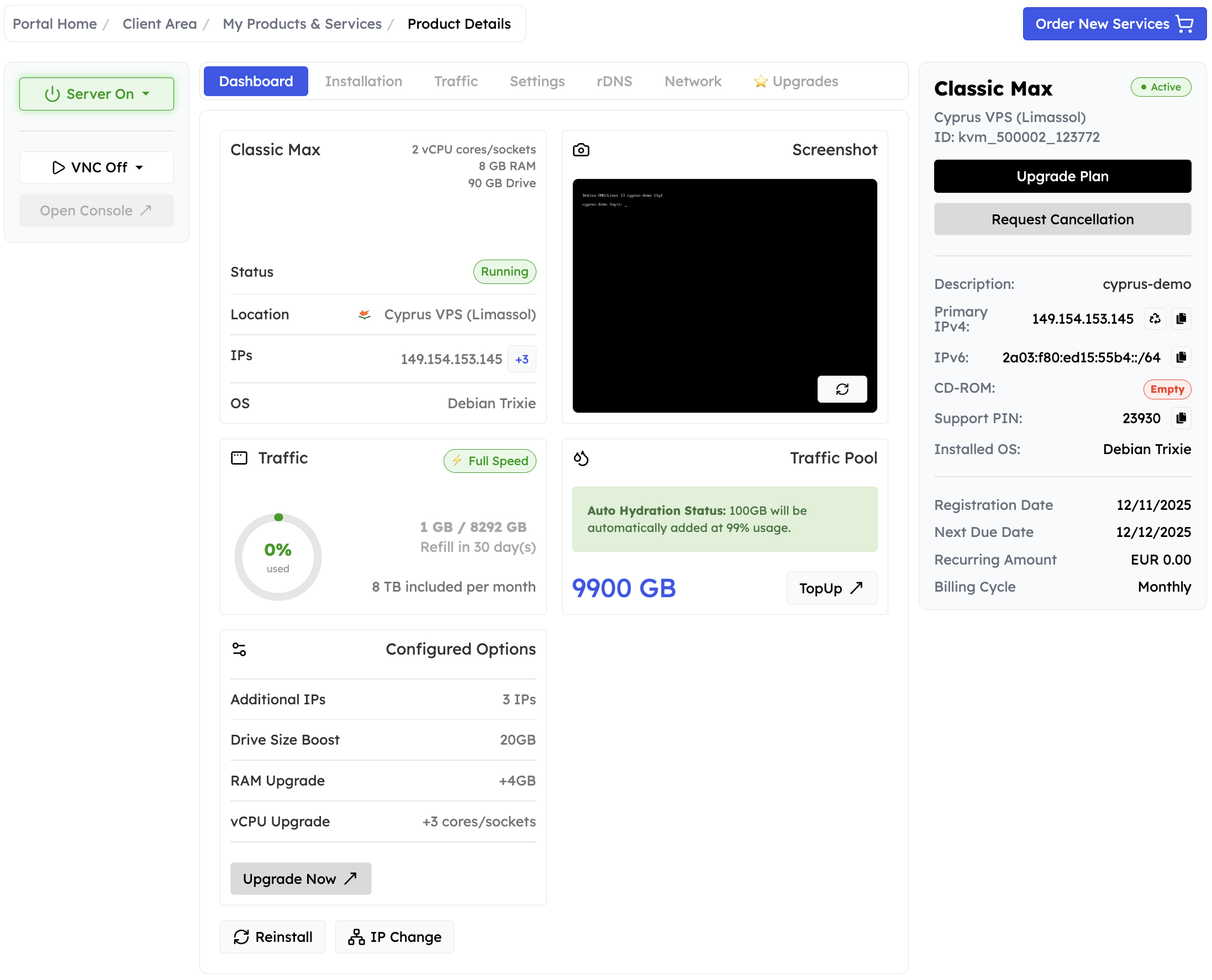
Quick Actions - Console Access
⚡ Power Menu
The green Server On button handles shutdowns and reboots. Open the dropdown to Stop or Restart your machine.
🖥️ VNC Toggle
Flip VNC on only when you need it. The button turns green while VNC is enabled, reminding you to disable it once remote work is finished.
🔗 Open Console
Launch the embedded noVNC viewer instantly. No extra navigation. Perfect for watching reinstalls, entering rescue environments, or capturing screenshots. Button in greyed-out when VNC is off.
Control Panel Highlights
📋 Service Summary
The right-hand sidebar lists status, location, primary IPv4/IPv6 (with copy buttons), installed OS, Support PIN, billing cycle, and renewal dates.
📸 Live Screenshot
Check the latest desktop image before connecting via RDP or VNC. Use it to confirm installs completed or login prompts are ready.
📊 Traffic Dial
Monitor consumed vs. allocated traffic. The dial shows percentage used, remaining traffic, real values in GB, and the next refill date so you can plan ahead. An info banner warns when traffic is low or fully used.
🌊 Traffic Pool Ledger
See global pool log and balance sheet, hydration history, trigger manual hydration, TopUp traffic pool links. An info banner warns when auto hydration isn’t configured or traffic pool is empty/unused.
🛠️ Fast Maintenance
Shortcut buttons for Reinstall and IP Change now sit beneath the Control Panel cards. Use them to reinstall your OS or initiate random or bespoke IP address changes.
⬆️ Upgrades & Cancellation
The green Upgrade Plan button starts a plan upgrade; the red Request Cancellation button opens the guided termination dialogue. The “Upgrades” Tab allows for plan-upgrades and resource upgrades (adding additional IP addresses, RAM, vCPU, drive boost)
⚙️ Configured Options
Displays all additional resources and upgrades applied to your VPS:
- Additional IPs: shows the number of extra IPv4 addresses assigned.
- Drive Size Boost: total extra disk space added to your main storage.
- RAM Upgrade: amount of extra memory allocated.
- vCPU Upgrade: number of additional CPU cores or sockets.
Tabs for Installation - Networking
- Installation – start AutoInstall for Linux or Windows, mount helper ISOs, review Cloud-Init status, or upload custom media.
- Traffic – inspect per-service usage graphs, refill timers, and the traffic pool ledger.
- Settings – adjust CPU sockets vs. cores, BIOS type, boot order, NIC model, and keyboard layout.
- rDNS – manage IPv4/IPv6 PTR records with instant validation.
- Network – copy your IPv4/IPv6 assignments and gateways at a glance.
- ⭐ Upgrades – order add-on IPv4 addresses, RAM/CPU boosts, or full plan upgrades directly—no need to message Support.
Bookmark the EDBB Control Panel. After signing in, open the top-right Account menu, choose Security Settings, and switch on multi-factor authentication to lock down access.