

Enable VNC for Console Access
VNC gives you a screen-and-keyboard connection to the VPS even when SSH or RDP is unavailable. Open your VPS in the Control Panel. The controls are in the left-hand quick-action column.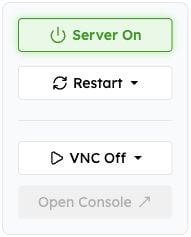
Find VNC Off and Open Console below the power controls.
What You’ll Need
Use your signed-in panel session and a running VPS. Enable VNC while you need interactive console access, then disable it afterward. You can use Open Console in your browser or a desktop VNC viewer.Step 1 – Toggle VNC
Open the arrow beside VNC Off and select Enable VNC.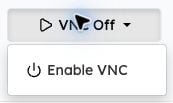
Open the dropdown and choose Enable VNC.
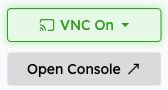
VNC On means console access is enabled; Open Console is now available.
Step 2 – Open the Console
Click Open Console. A new browser tab opens the VPS display through your signed-in panel session. Click inside the display to send keyboard input. A Linux login prompt still requires your operating-system credentials.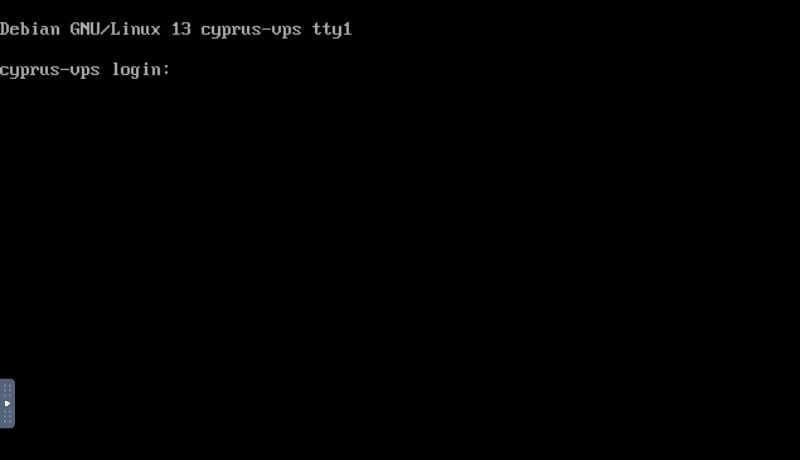
Example: a working browser console showing the Debian login prompt.
Step 3 – Disable VNC When Finished
Return to the panel, open the arrow beside VNC On, and select Disable VNC.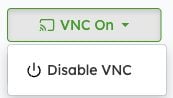
Choose Disable VNC when your console work is finished.
Desktop VNC Client Instructions
- Enable VNC in the panel.
- Copy the VNC Hostname, including its port, into your VNC viewer.
- Use the VNC password shown in the panel. This is separate from your operating-system login.
- Connect, complete your console work, then disable VNC in the panel.