

Change the IPv4 Address in Windows Server
Before editing Windows networking, note the IPv4 address, subnet, gateway, and DNS values from the EDBB Control Panel. Changing settings interrupts connectivity—plan a brief maintenance window.
Step 1 – Collect the New Settings
1
Open the Network tab
Sign in to the EDBB Control Panel and open the Network tab on your VPS. Record the IPv4 details exactly as shown.
2
Decide on additional IPs
If multiple addresses are assigned, choose which will be primary (outbound) and which will be secondary.
Step 2 – Connect to the Server
- Use an RDP session if the current address is reachable.
- If the old IP is already removed, enable VNC in the quick actions and click Open Console to work from the portal console.
Step 3 – Open Adapter Properties
- Press
Win + R, typencpa.cpl, and press Enter. The Network Connections window opens. - Right-click your main adapter (typically Ethernet) and choose Properties.
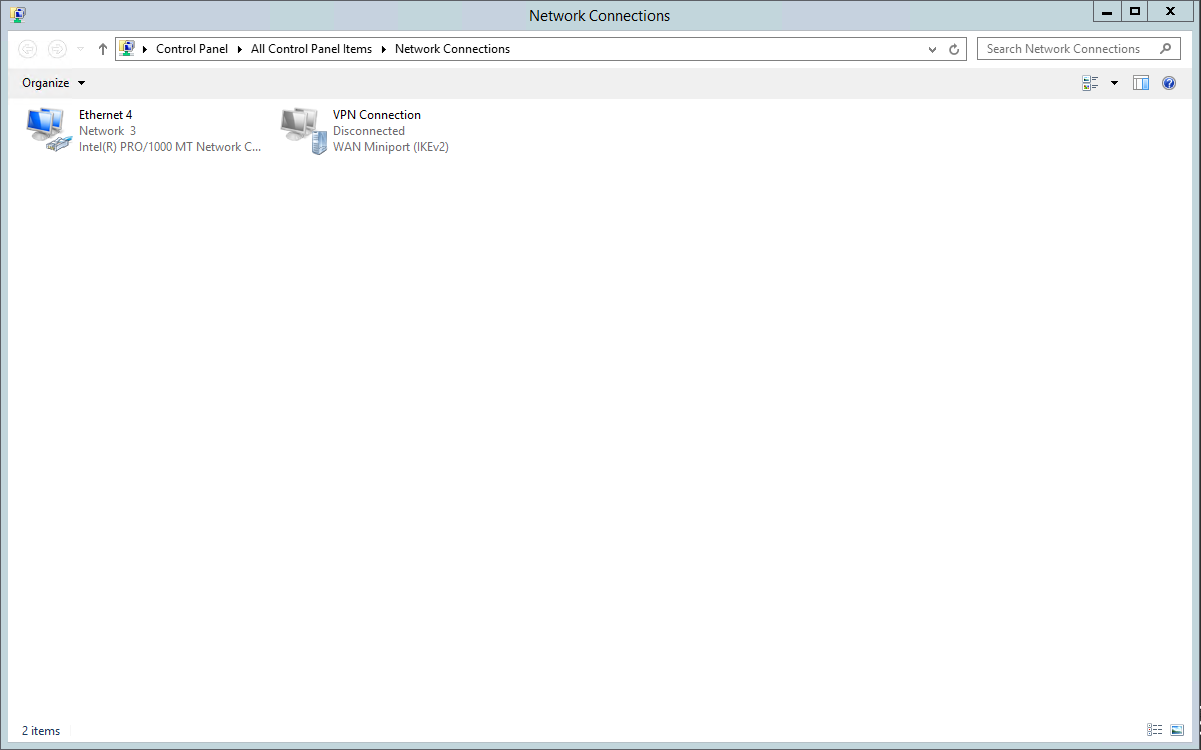
Step 4 – Enter the New IPv4 Values
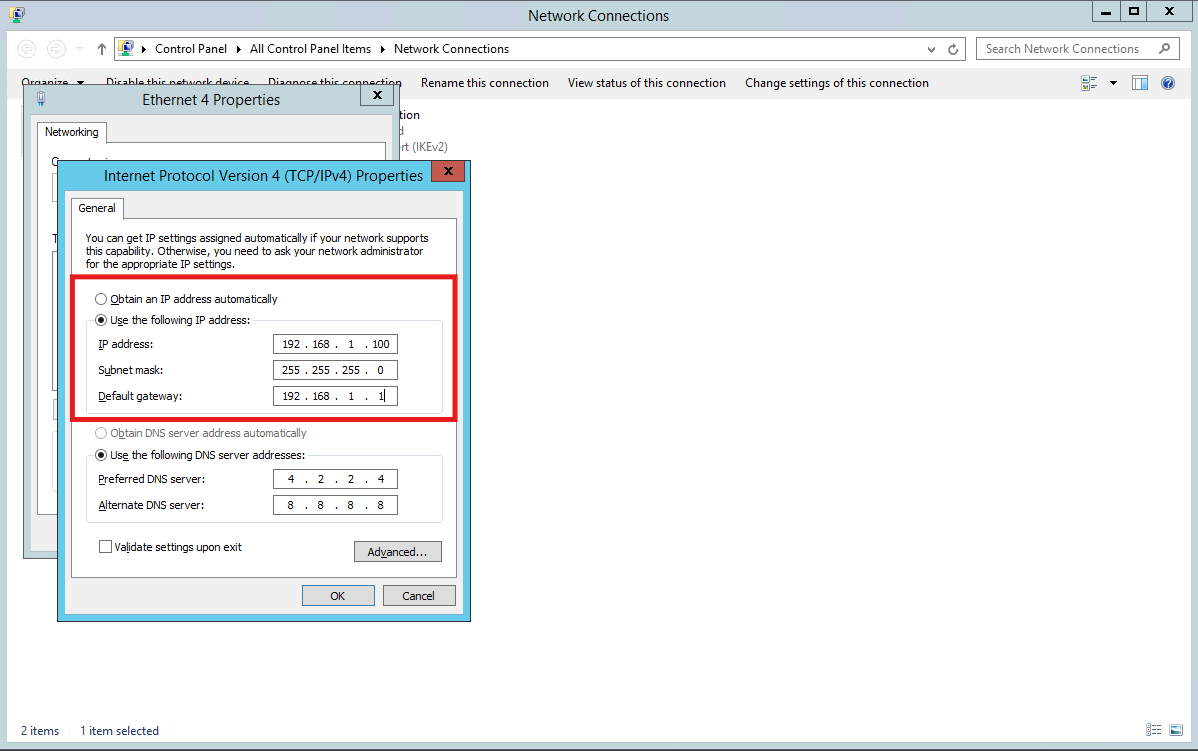
- Highlight Internet Protocol Version 4 (TCP/IPv4) and click Properties.
- Select Use the following IP address and input the data from the Control Panel (IP, subnet mask, default gateway).
- If DNS servers are listed, choose Use the following DNS server addresses and add them.
Step 5 – Verify with PowerShell
Open PowerShell as Administrator and confirm the new values:Step 6 – Test Connectivity
Automation Option
Use PowerShell for scripted changes (update values before running):Final Checklist
- Update firewalls, monitoring, and documentation with the new IP.
- Restart services that bind to the old address (IIS sites, databases, etc.).
- Confirm scheduled tasks or backup jobs that reference the IP have been refreshed.