

Reset the Windows Administrator Password
Every EDBB Windows VPS includes a password-helper ISO. Booting from it lets you clear the local SAM database and set a new Administrator password without reinstalling the operating system.
Before You Begin
🔐 Control Panel Access
Confirm you can sign in to the EDBB Control Panel. You’ll manage the entire workflow from the service Control Panel.
🕒 Restart Window
Allow a short maintenance window—the VPS reboots once into the helper ISO and once back into Windows.
🔑 New Password Ready
Prepare a strong replacement password in your manager so you can paste it the moment Windows unlocks.
Step 1 – Open the VPS Control Panel
1
Log in
Sign in to the EDBB Control Panel, go to Services, and open the Windows VPS that needs recovery.
2
Check the status
Ensure the VPS is running. The helper workflow uses an automated reboot—no manual shutdown required.
Step 2 – Boot from the Password Helper ISO
1
Enable console access
In the quick action column, expand the red VNC Off button and choose Enable VNC. See the VNC guide if you need extra help.
2
Go to Installation → ISO Boot
Switch to the Installation tab along the top, then select the ISO Boot sub-tab.
3
Mount the helper ISO
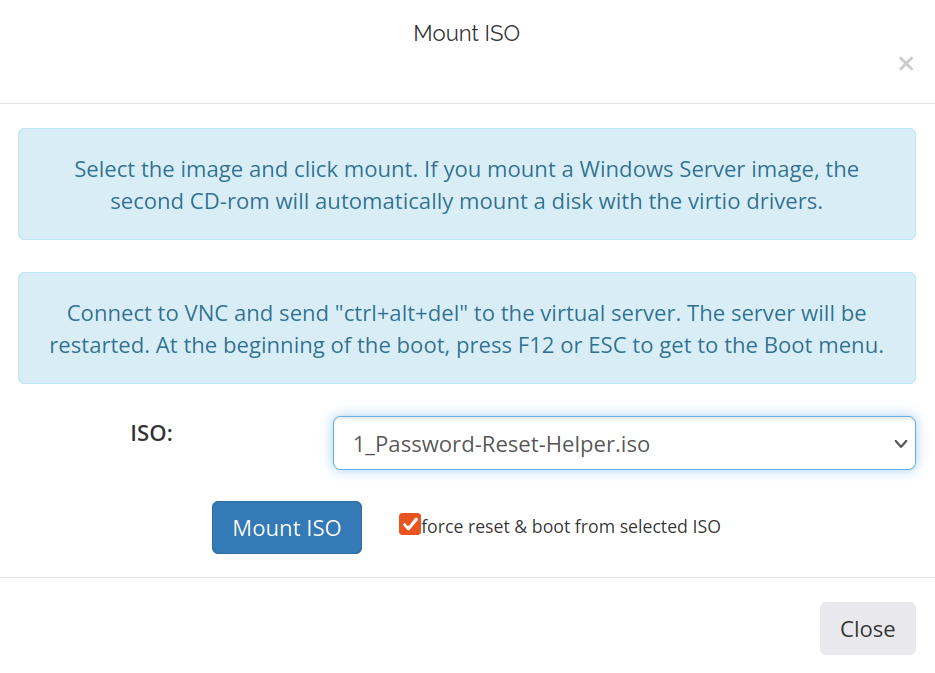
Pick 1_Password-Reset-Helper.iso, tick Force reset & boot from the selected ISO, and click Mount ISO.
4
Open the console
Click Open Console to launch the portal console (or use your preferred VNC client) and watch the helper environment boot.
Step 3 – Clear the Administrator Password
- Click inside the console window so keyboard input is captured.
-
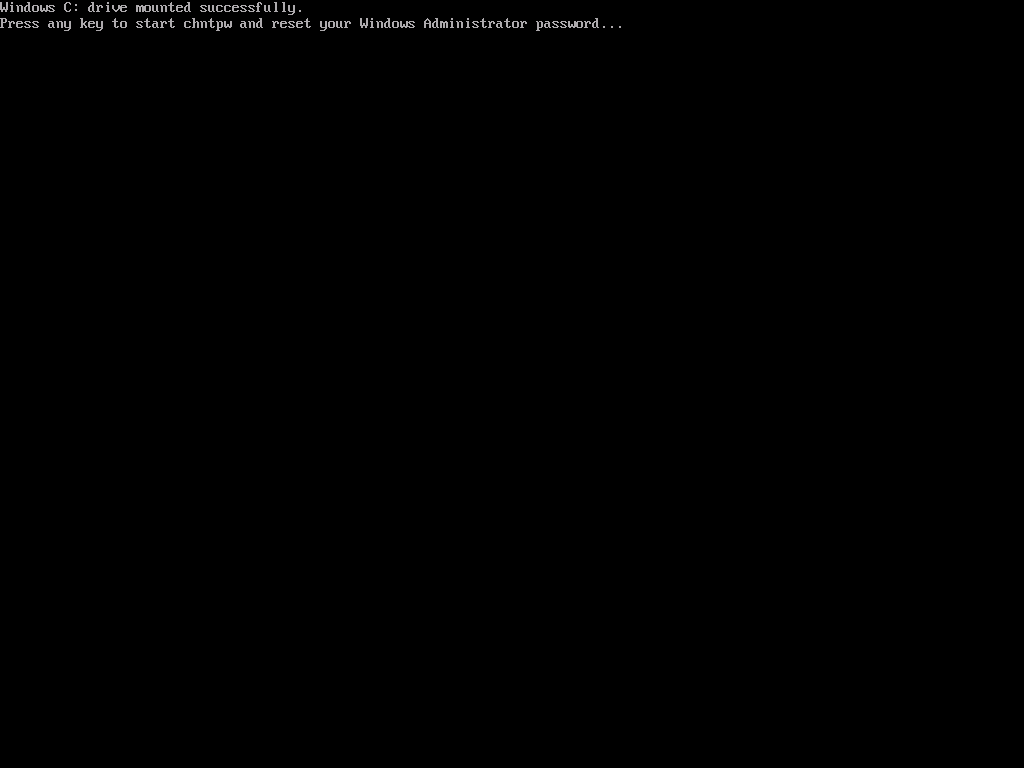
Wait for the helper menu to appear.
-
Press Enter, type
1for Reset Administrator password, and press Enter again.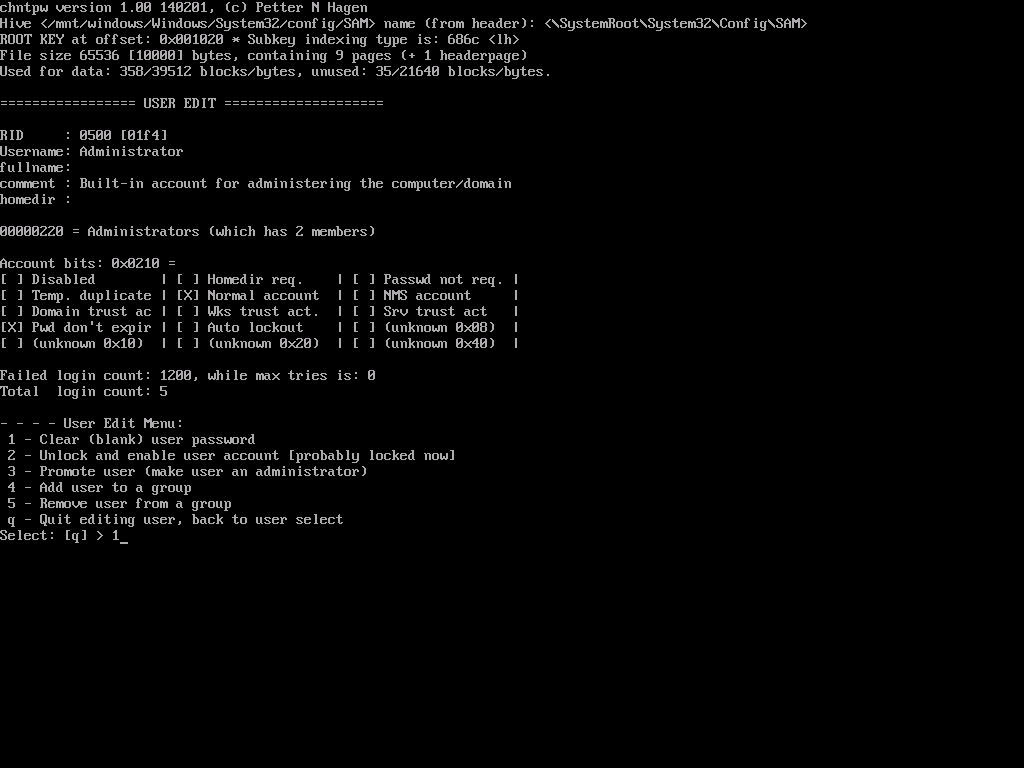
-
Type
qto quit the user editor and hit Enter.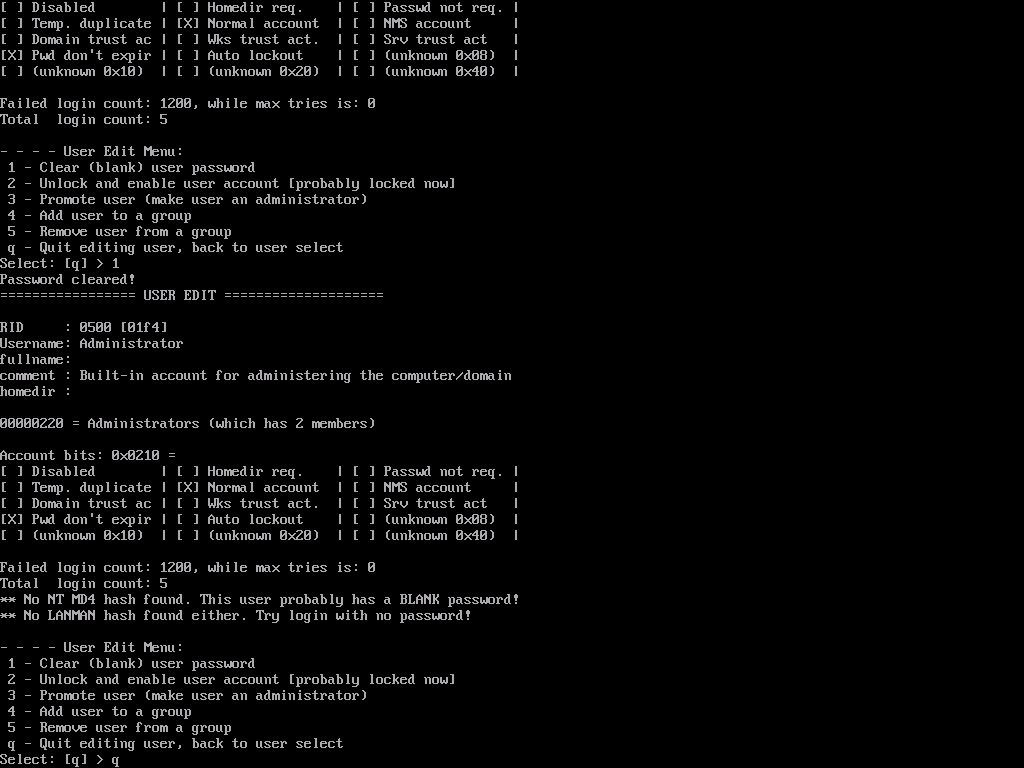
-
Enter
yto save the changes and press Enter once more.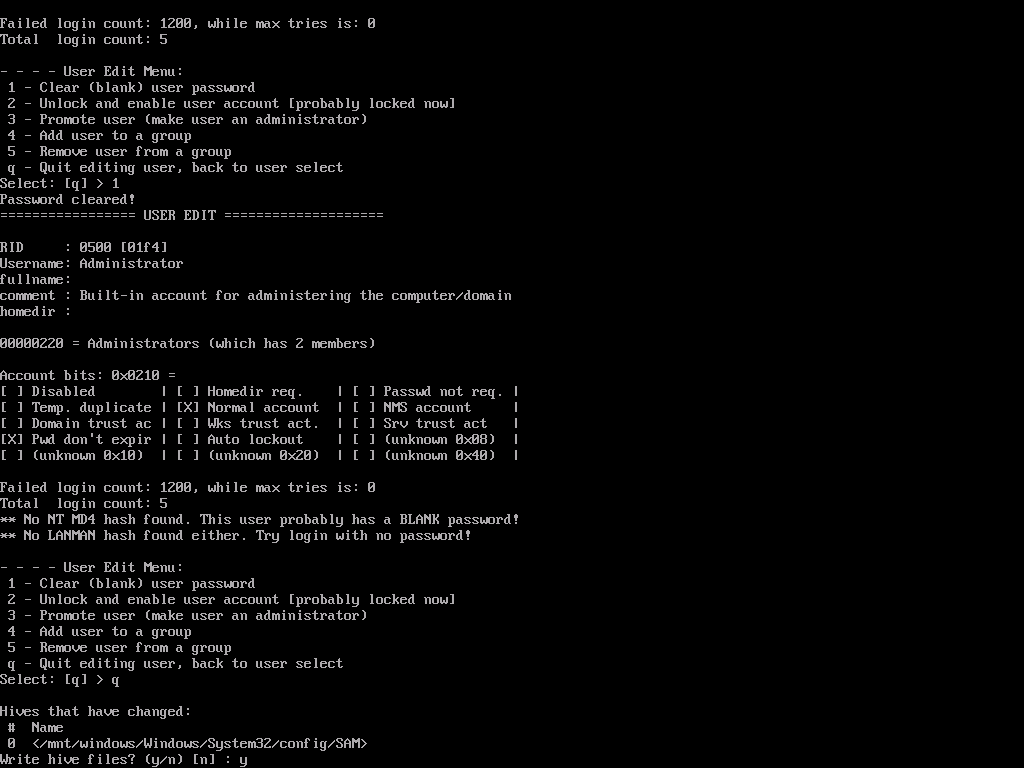
-
Accept the confirmation to unmount the ISO and reboot.
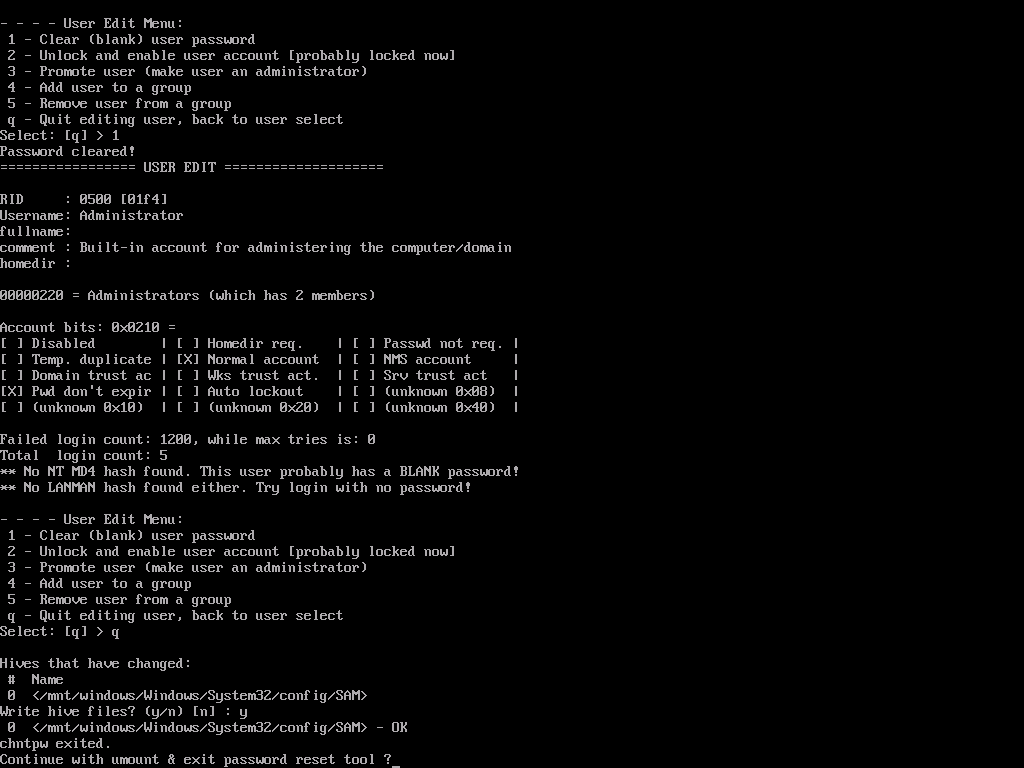
Store the new password immediately—EDBB does not resend credentials. Treat the helper ISO as temporary; leave it mounted only while you complete the reset.
Step 4 – Sign In and Set a New Password
- After the reboot, Windows signs in without asking for a password.
-
Launch Command Prompt as Administrator.
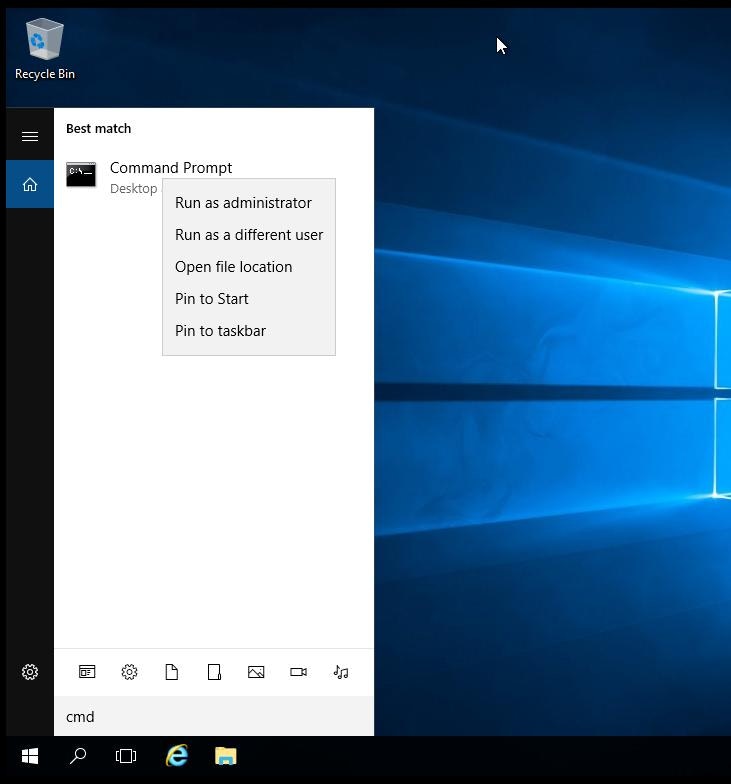
-
Run the following command, replacing
NewStrongPassword!with your chosen value:
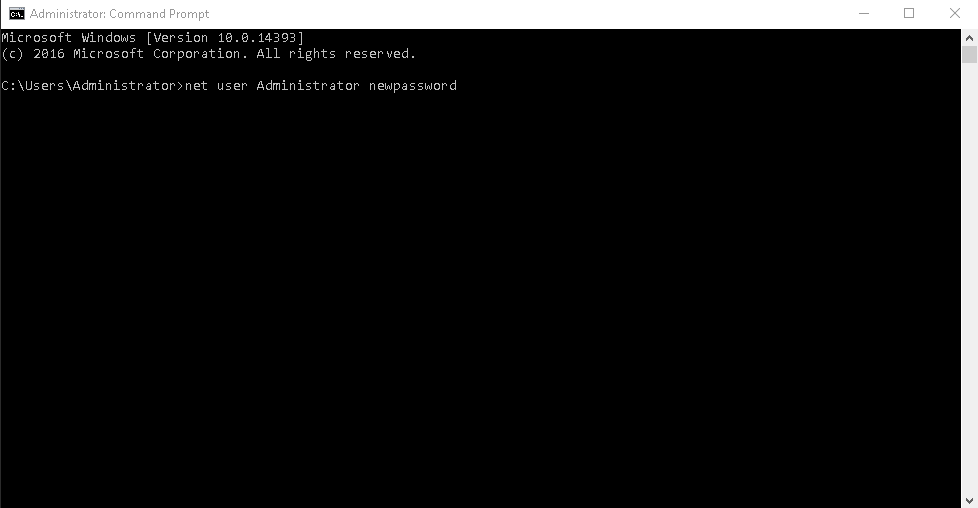
- Close the command window, log off, and sign back in with the new Administrator password to confirm the change.
Step 5 – Return to Normal Boot
1
Unmount the ISO
Back in Installation → ISO Boot, click Unmount so Windows boots from disk next time.
2
Disable VNC
Toggle VNC back off if you only needed it for the reset.
3
Update records
Store the new credential in your password manager and update any internal runbooks.
Aftercare Tips
- Enable multi-factor authentication for administrative users where possible.
- Audit local accounts periodically and remove access for former staff or contractors.
- Keep this helper ISO workflow in your incident response plan for future reference.