Mount ISO Images from the Control Panel
Mounting an ISO temporarily changes the boot order. Be ready for the VPS to reboot and save any work before you proceed.
Before You Start
🔐 Control Panel Access
Confirm you can sign in to the EDBB Control Panel and open the service Control Panel.
🕒 Maintenance Window
Plan a short outage—the VPS restarts when the ISO is attached.
🖥️ Console Ready
Enable VNC via the quick actions (Server On column) or follow the VNC enable guide if it is currently disabled.
Use the EDBB ISO Library
1
Open the Installation tab
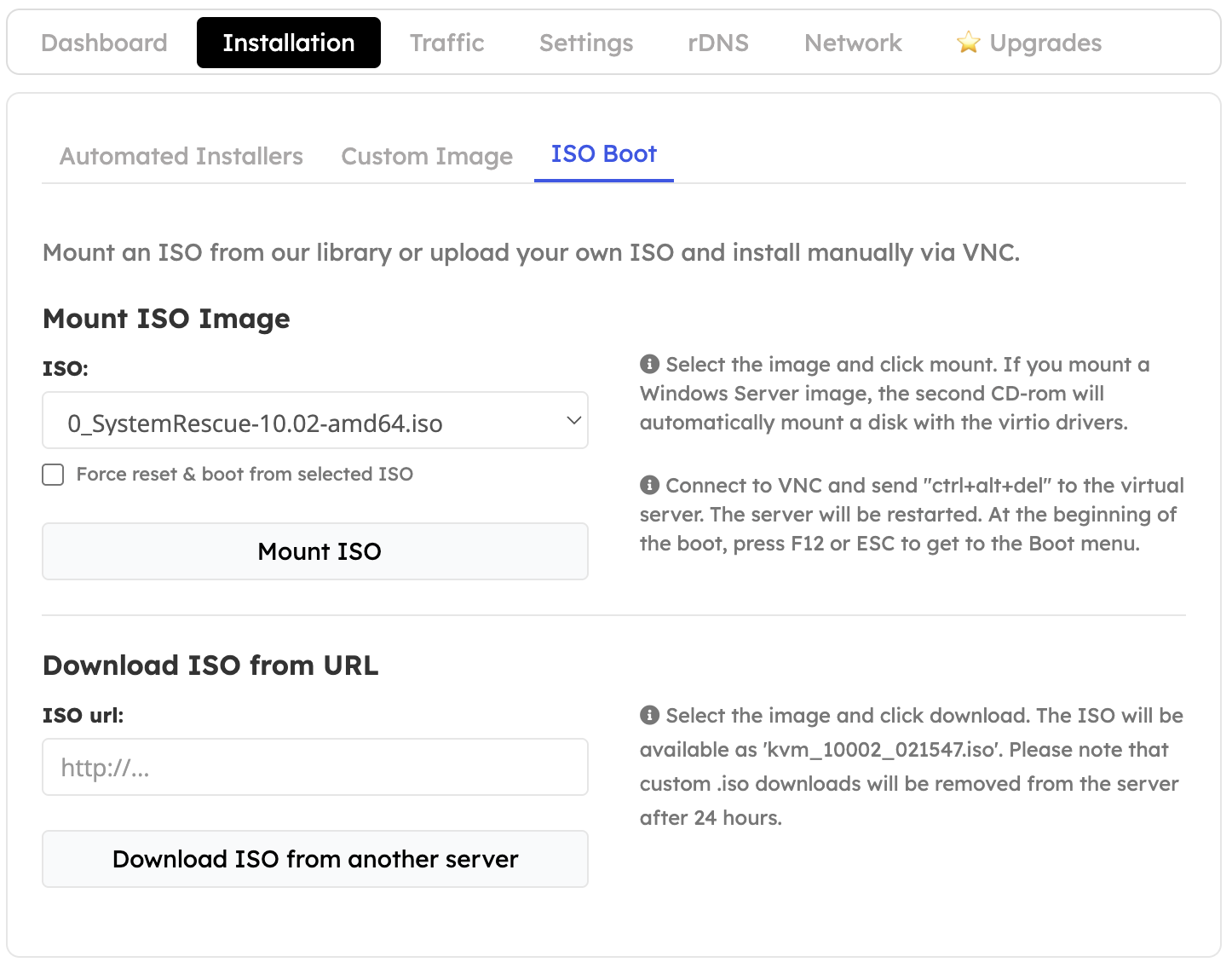
From your VPS Control Panel, switch to Installation, then the ISO Boot sub-tab.
2
Pick an ISO
Choose from the built-in helper images (Linux rescue tools, Windows password helper, etc.).
3
Mount & reboot
Tick Force reset & boot from the selected ISO, then click Mount ISO. The VPS reboots automatically into that image.
Work from the Console
1
Launch the console
Click Open Console to open the portal console (or connect with your VNC client).
2
Follow boot prompts
Most ISOs ask you to press a key quickly—watch the console so you don’t miss the prompt.
3
Finish your tasks
Complete the installer or recovery steps. Leave the ISO mounted if you need multiple restarts.
Unmount When Finished
1
Return to ISO Boot
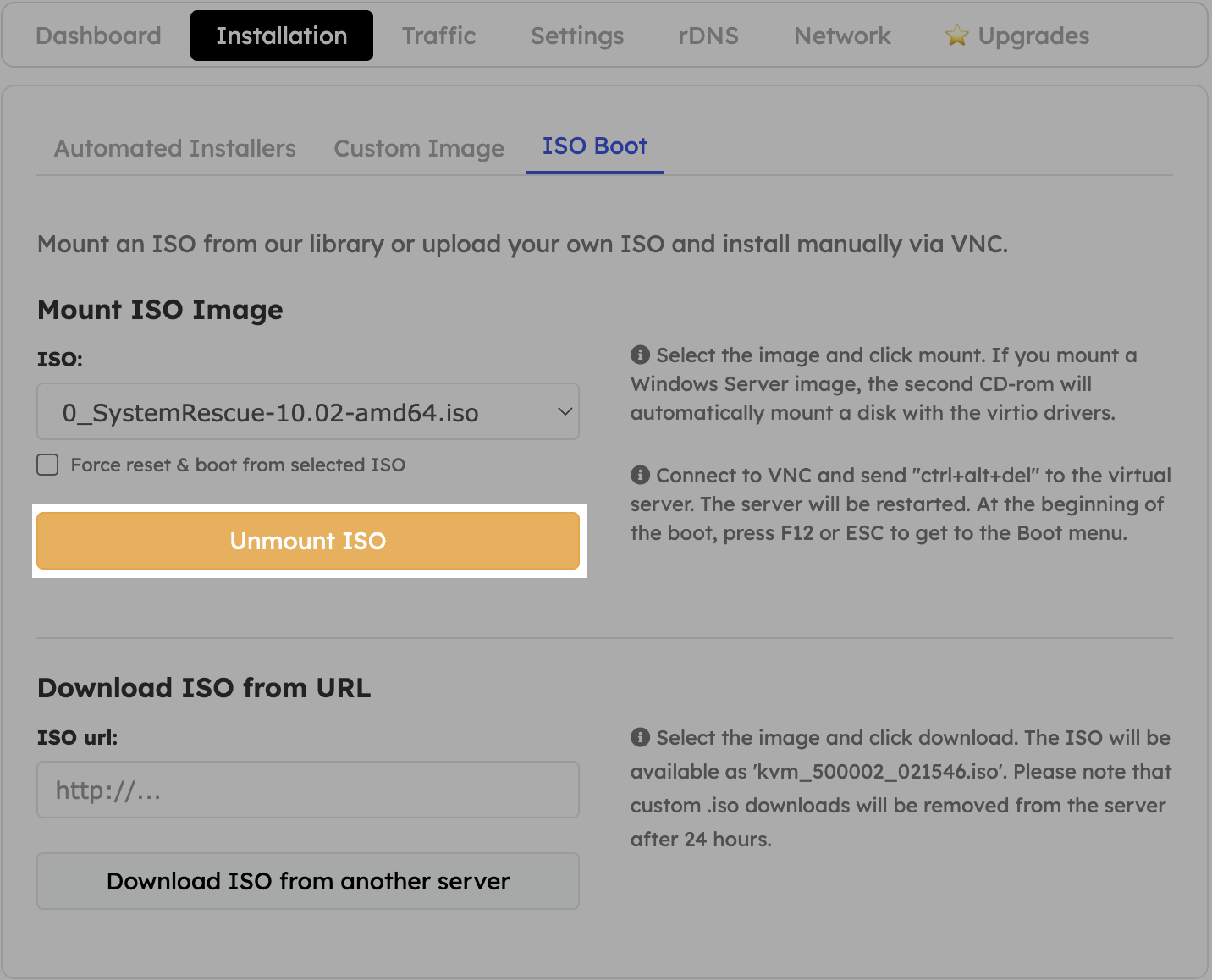
Go back to Installation → ISO Boot.
2
Unmount
Click Unmount (or switch to Boot from local disk) so the VPS boots normally next time.
3
Reboot if needed
Use the Server On menu to restart the VPS from disk and disable VNC if you no longer need console access.