

Check that your VPS is ready
Sign in to the EDBB Control Panel, open Services, and select your VPS. Check that the invoice is paid and the installation has finished. SSH and Remote Desktop are unavailable while the operating system is being installed. If the service is missing or installation does not finish, contact support@edbb.com from your account email address. Include the order or invoice number, but do not send a password.New VPS with no data to keep: reinstall it
Reinstalling lets you choose a new password or SSH key. This is a simple way to start using a new VPS when you have not yet stored anything on it.1
Open the installer
Open your VPS in Services, select Installation, then Automated Installers.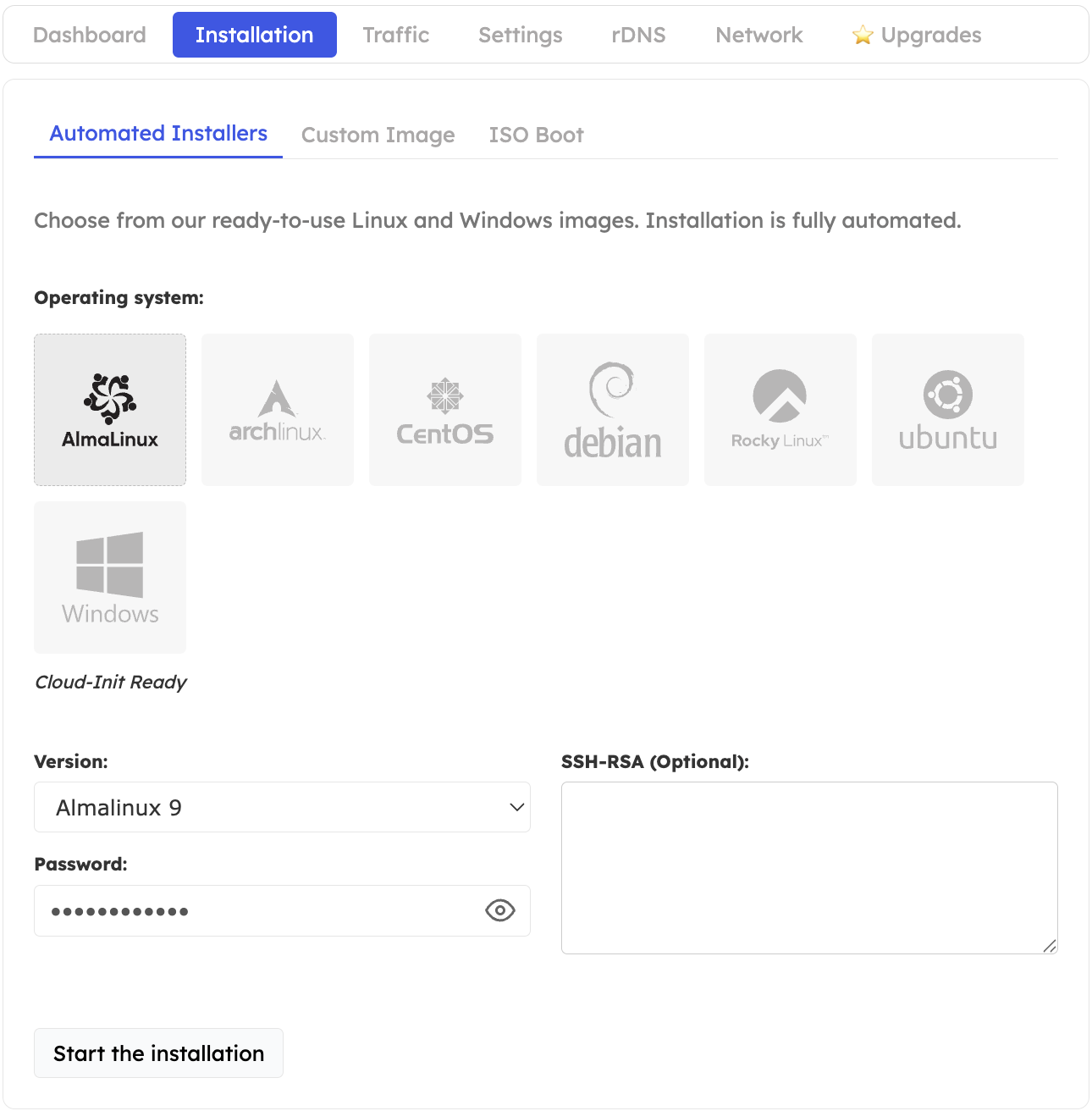
2
Choose the operating system
Select Linux or Windows and choose the required version. Enter a strong password, or supply your SSH public key when offered.
3
Start the installation
Click Start the installation and follow the progress in the Installation tab. Do not power off or reboot the VPS while installation is running.
4
Connect with your new login details
When installation finishes, connect using SSH for Linux or Remote Desktop for Windows. Use the password you just chose, or your SSH key.
Reinstalling does not send another welcome email. Save the password you choose in a password manager.
Existing VPS: reset the password and keep your data
Use the guide for your operating system. Resetting a password is different from reinstalling the server.Reset a Linux password
Recover root access using the console and recovery tools.
Reset a Windows password
Choose a new Administrator password for the existing installation.