

Reset the Windows Administrator Password
Every EDBB Windows VPS includes a password-helper ISO. Booting from it lets you clear the selected local account password and set a new Administrator password without reinstalling the operating system.
Before You Begin
Control Panel Access
Confirm you can sign in to the EDBB Control Panel. You’ll manage the entire workflow from the service Control Panel.Restart Window
Allow a short maintenance window—the VPS reboots once into the helper ISO and once back into Windows.New Password Ready
Prepare a strong replacement password in your manager so you can paste it the moment Windows unlocks.Step 1 – Open the VPS Control Panel
1
Log in
Sign in to the EDBB Control Panel, go to Services, and open the Windows VPS that needs recovery.
2
Check the status
Save work and shut down Windows cleanly when possible before forcing a boot into recovery media.
Step 2 – Boot from the Password Helper ISO
1
Enable console access
In the quick action column, expand the red VNC Off button and choose Enable VNC. See the VNC guide if you need extra help.
2
Go to Installation → ISO Boot
Switch to the Installation tab along the top, then select the ISO Boot sub-tab.
3
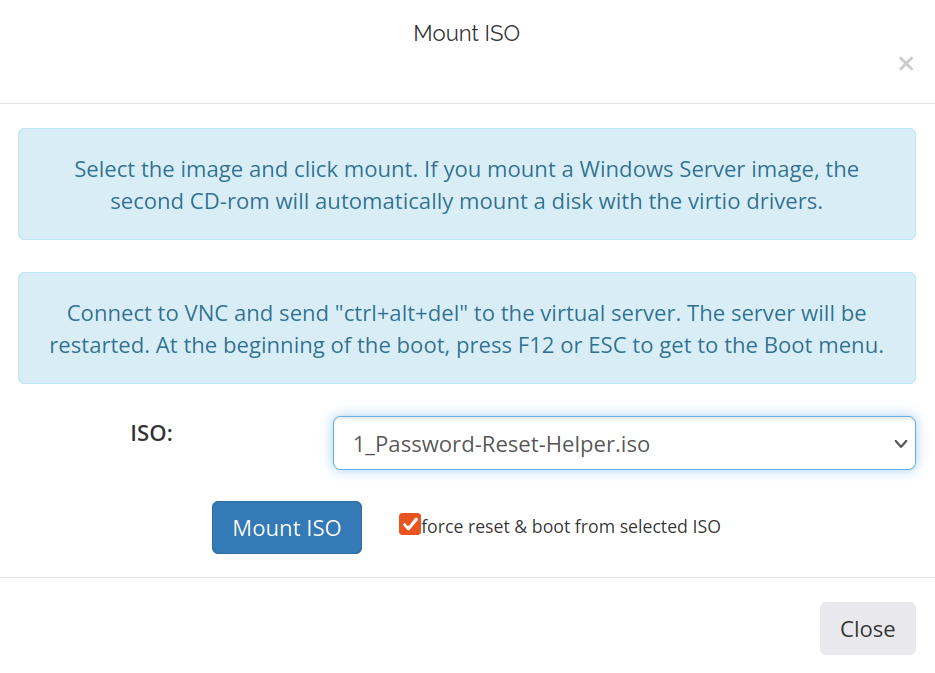
Mount the helper ISO
Pick 1_Password-Reset-Helper.iso, tick Force reset & boot from the selected ISO, and click Mount ISO.
4
Open the console
Click Open Console to launch the portal console (or use your preferred VNC client) and watch the helper environment boot.
Step 3 – Clear the Administrator Password
- Click inside the console window so keyboard input is captured.
-
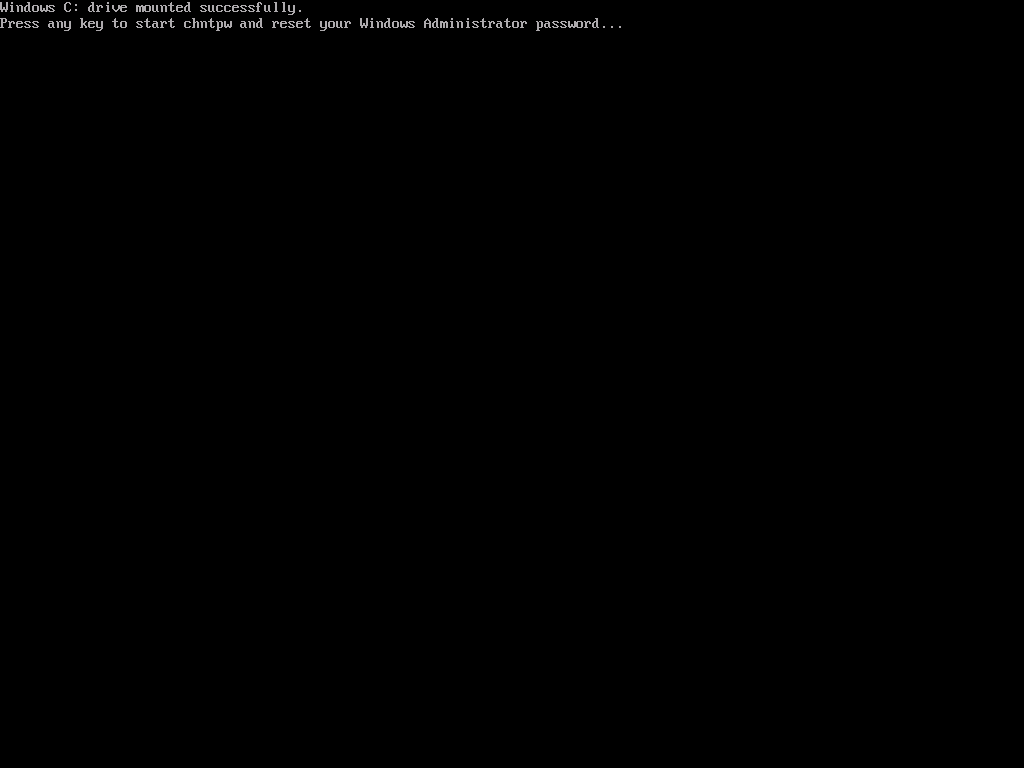
Wait for the helper menu to appear.
-
Press Enter, type
1for Reset Administrator password, and press Enter again.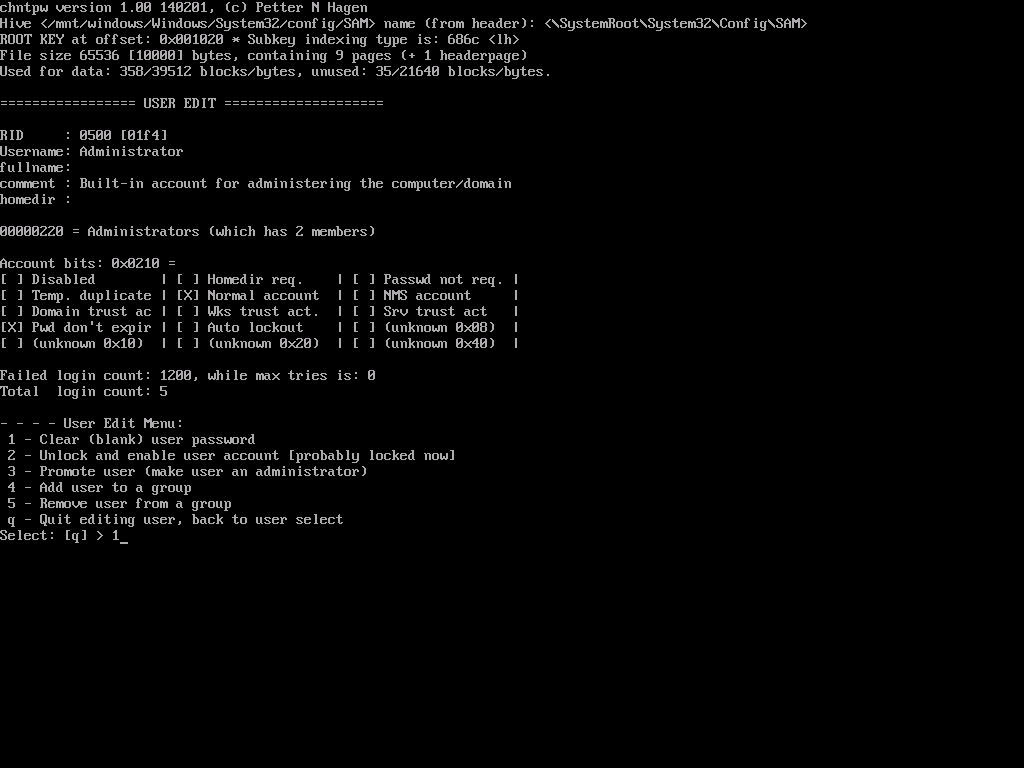
-
Type
qto quit the user editor and hit Enter.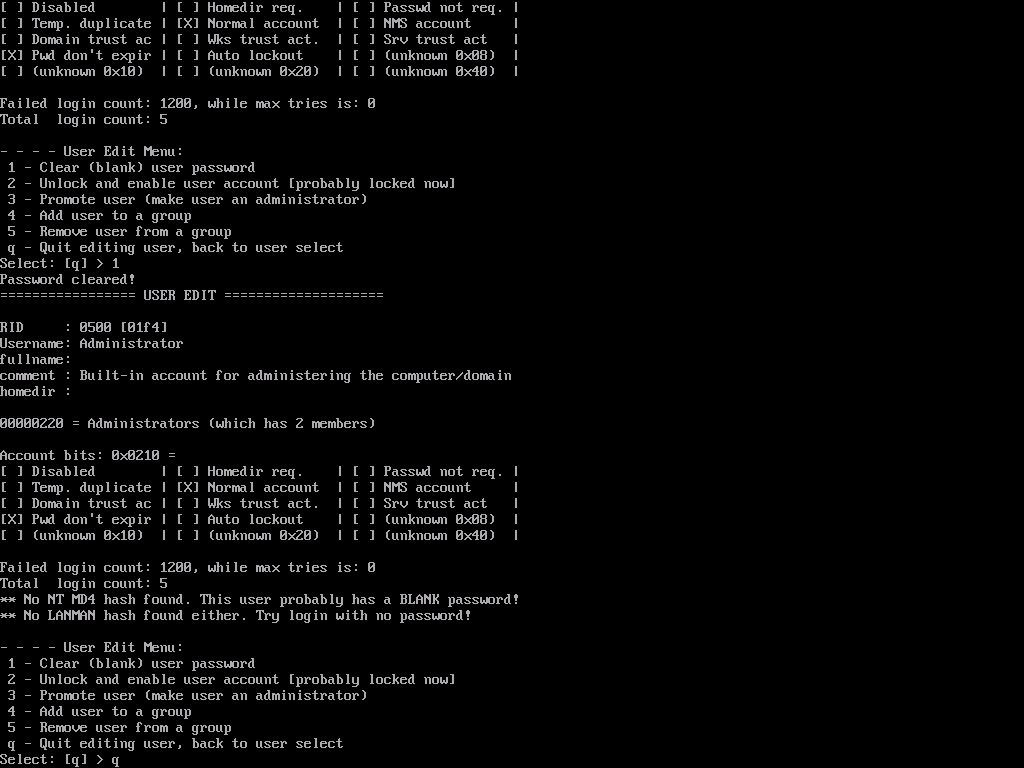
-
Enter
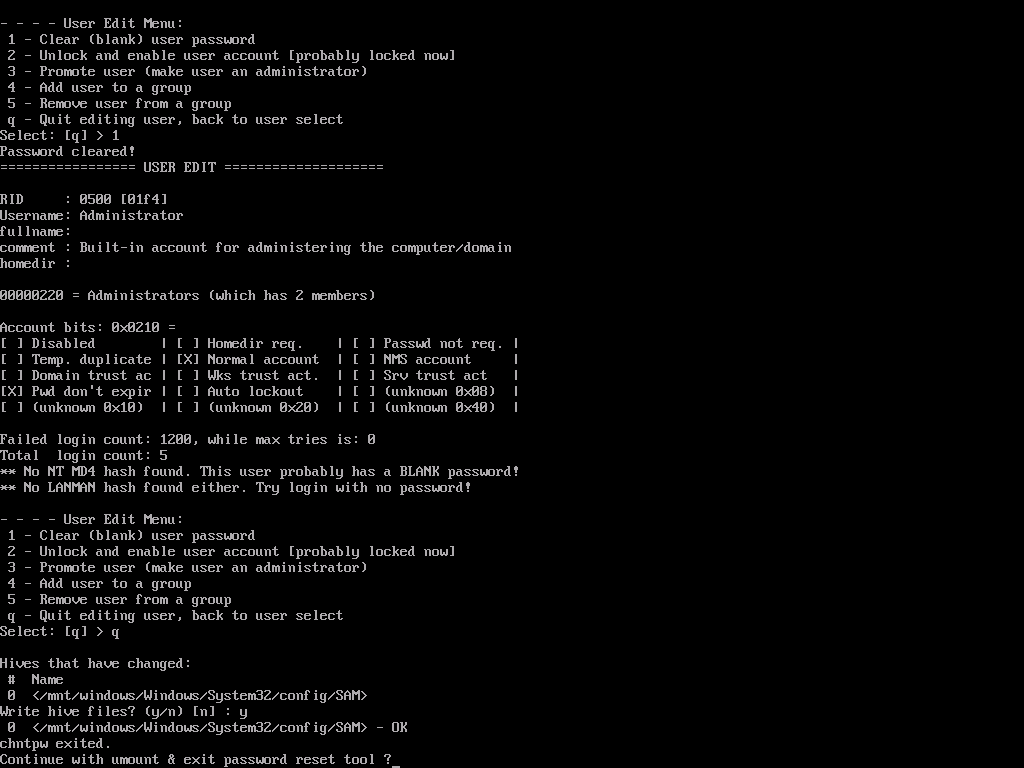
yto save the changes and press Enter once more.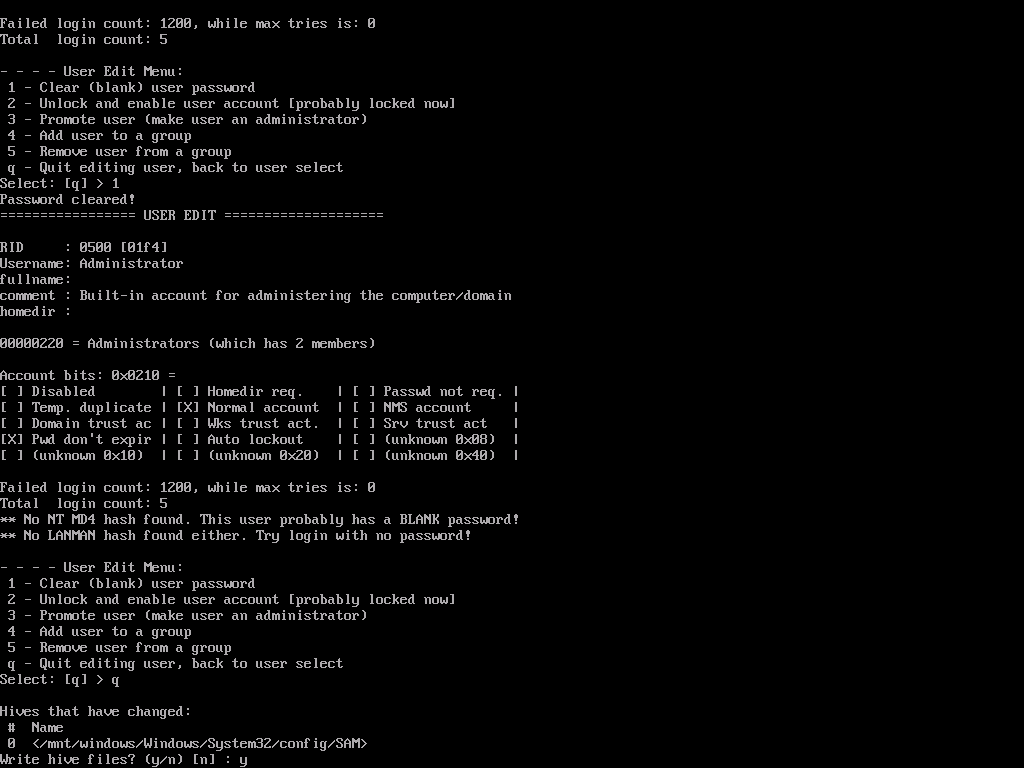
-
Accept the confirmation to unmount the ISO and reboot.
Step 4 – Sign In and Set a New Password
- After reboot, use the console to sign in to the local account whose password was cleared. Automatic sign-in is not guaranteed; blank-password remote logins may be blocked.
-
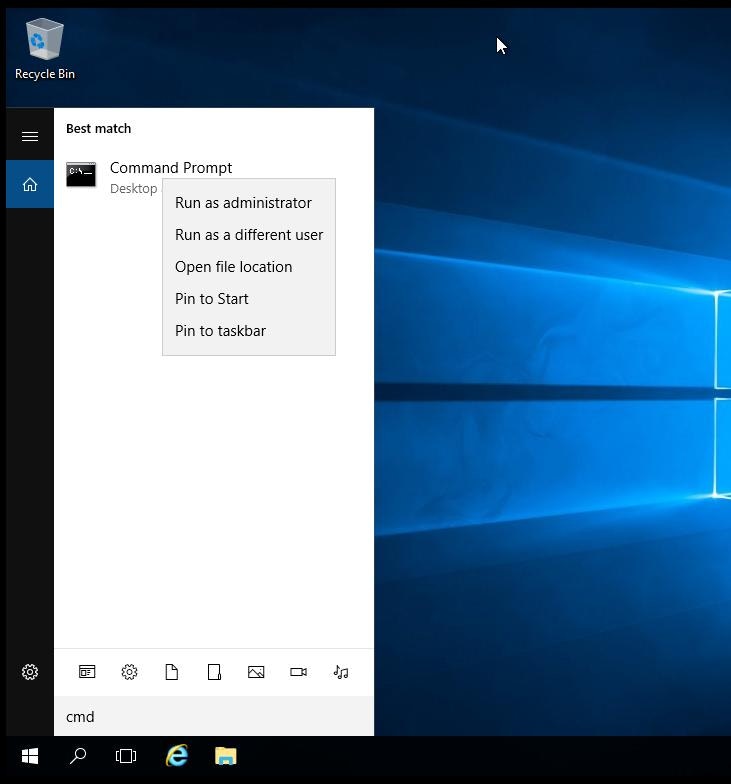
Launch Command Prompt as Administrator.
- Run the following command to enter and confirm the password interactively (use the actual local account name if it was renamed):
- Close the command window, log off, and sign back in with the new Administrator password to confirm the change.
Step 5 – Return to Normal Boot
1
Unmount the ISO
Back in Installation → ISO Boot, click Unmount so Windows boots from disk next time.
2
Disable VNC
Toggle VNC back off if you only needed it for the reset.
3
Update records
Store the new credential in your password manager and update any internal runbooks.
Aftercare Tips
- Enable multi-factor authentication for administrative users where possible.
- Audit local accounts periodically and remove access for former staff or contractors.
- Keep this helper ISO workflow in your incident response plan for future reference.