

Find the Traffic Pool controls
Open your VPS and select Traffic. The left side separates Overall Traffic for this VPS from your shared Traffic Pool. On the right are manual assignments, Auto Hydration and the logs.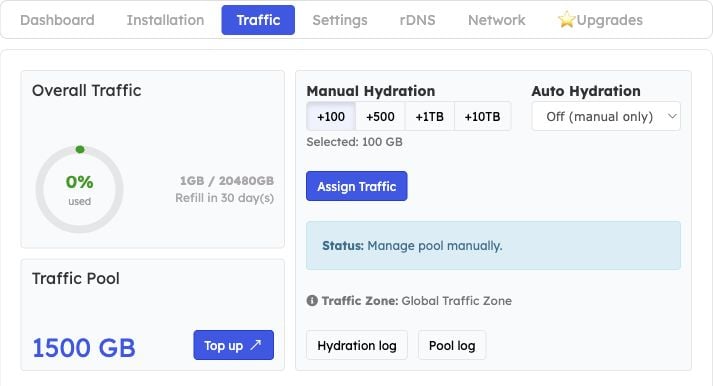
Traffic overview: VPS allowance and pool balance on the left; assignment controls and logs on the right.
Which traffic expires?
Your EDBB plan sets the included monthly allowance. Check the Traffic tab for your VPS’s current balance and refill date.
Buy and assign traffic
Open the VPS in the EDBB Control Panel and select the Traffic tab. Use Top up or the EDBB traffic purchase page. Confirm the amount and price in checkout. After payment is confirmed, assign traffic using Manual Hydration: +100 GB, +500 GB, +1 TB or +10 TB, then Assign Traffic. The amount is deducted from the account pool and added to this VPS’s current allowance.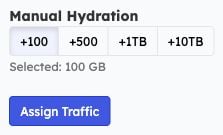
Selecting 100 GB prepares an assignment. Assign Traffic submits it.
Example: assign 100 GB manually
- Under Manual Hydration, choose +100.
- Check that Selected reads 100 GB, then click Assign Traffic once.
- Wait for the success message and check both balances. In this example, the shared pool falls from 1,500 GB to 1,400 GB, while the VPS allowance rises from 20,480 GB to 20,580 GB. Usage remains separate from the allowance.
- Open Hydration log to check the assignment entry.
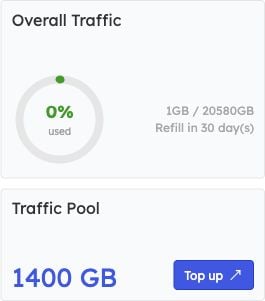
After one 100 GB assignment: the pool has 1,400 GB and the VPS allowance is 20,580 GB.
Auto-Hydration
Enable Auto-Hydration separately for each VPS and select 100 GB, 200 GB, 300 GB or 500 GB. At 99% of the current allowance, the selected amount is assigned from the pool if enough balance is available. The current allowance includes Plan Traffic and traffic already assigned during the cycle. Auto-Hydration uses existing pool balance; it never purchases traffic automatically.Turn on automatic 100 GB assignments
Select Auto: +100 GB in the Auto Hydration dropdown. The selection saves immediately. Check that the status says Automatically add 100GB at 99% usage. Selecting this option does not itself assign 100 GB; it sets the increment for the next threshold-triggered assignment.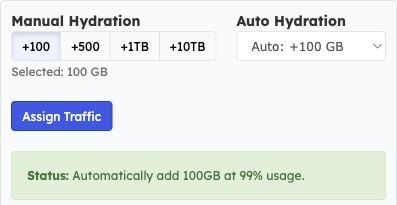
ON: the dropdown and green status confirm automatic 100 GB assignments at 99% usage.
Turn Auto-Hydration off
Select Off (manual only). The status changes to Manage pool manually. The 100 GB already assigned stays in the VPS allowance until its monthly refill; switching automation off does not return it to the pool.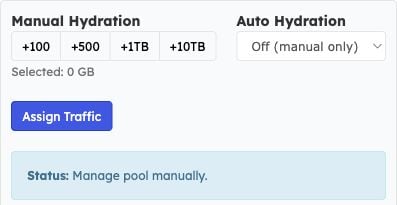
OFF: future assignments are manual. Previously assigned traffic is unchanged.
Read the logs
Use Hydration log and Pool log to distinguish assignment to a VPS from actual network usage. A pool deduction means traffic was assigned, not that it was already consumed.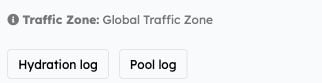
Hydration log shows VPS assignments; Pool log shows account-pool activity.