

Why Add Credit
Account credit is optional. It’s useful if you want renewals to auto-charge from a balance, prefer to pre-fund several invoices, or need coverage while traveling.
Top Up in the Control Panel
Sign in to the EDBB Control Panel and open Billing → Add Funds. The left-hand Available Credit card shows your current balance. The main area shows the deposit limits and payment form.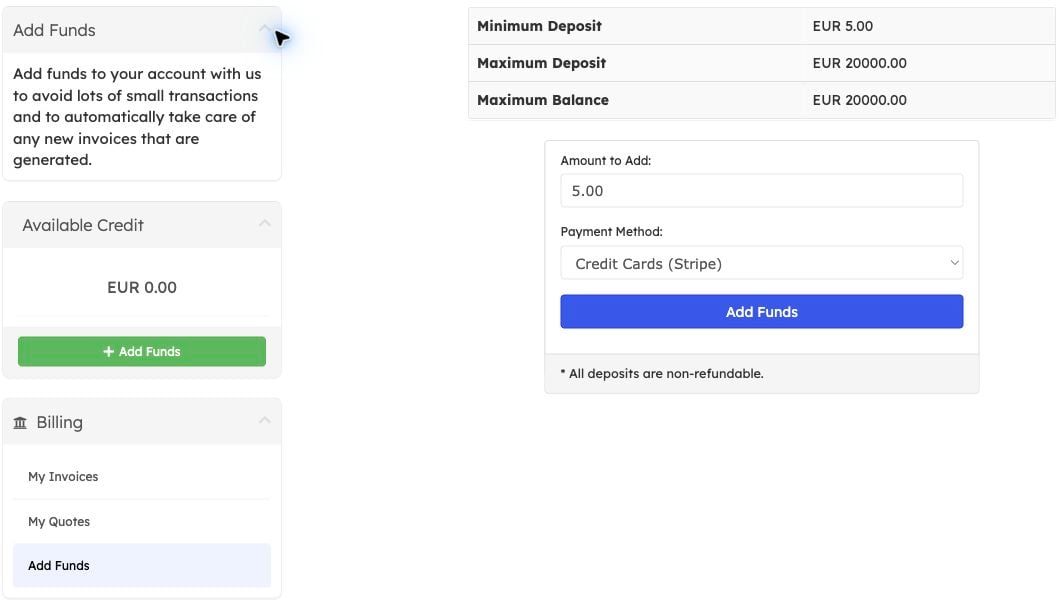
Check your available balance and the limits displayed for your account.
- Enter the Amount to Add within the displayed limits.
- Select a Payment Method.
- Review the deposit notice, then click Add Funds and complete the payment flow.
- Return to the panel and confirm that Available Credit reflects the completed payment.
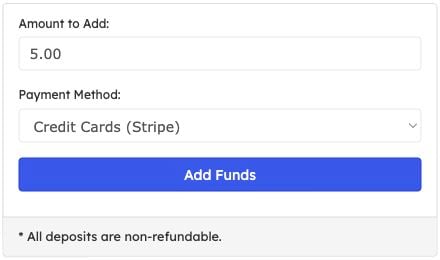
Example amount and payment method. Creating a top-up invoice is not the same as paying it.
Top Up by Bank Transfer
For transfers of EUR 250 or more, follow Top up account balance by bank transfer. The guide includes the payment-reference requirements, manual-processing rules and EUR bank details.How the Balance Is Used
- Future invoices auto-deduct from credit when the due date arrives.
- Existing unpaid invoices remain outstanding—you can apply credit manually from the invoice view.
- Overpayments add to your credit; underpayments require an additional top-up to cover the difference.
Crypto Payment Tips
- Include network fees so the gateway receives the exact requested amount.
- Slightly overpay if your wallet rounds down dust amounts.
- If the payment lands short, the system will prompt for a top-up to close the gap.