Changing an IPv4 address can disconnect RDP. Use the EDBB VNC console and record the existing configuration before making the change.

Prepare

Copy the new address, prefix/subnet mask, gateway and DNS values from the service’s Network tab. Identify the adapter carrying the current address. Do not remove every IPv4 address on an adapter; secondary addresses and routes may support other services. In PowerShell, inspect the existing configuration:
Save the output securely for rollback and record whether the adapter uses DHCP or static configuration.

Update the intended address

  1. From the console, open Network Connections (ncpa.cpl).
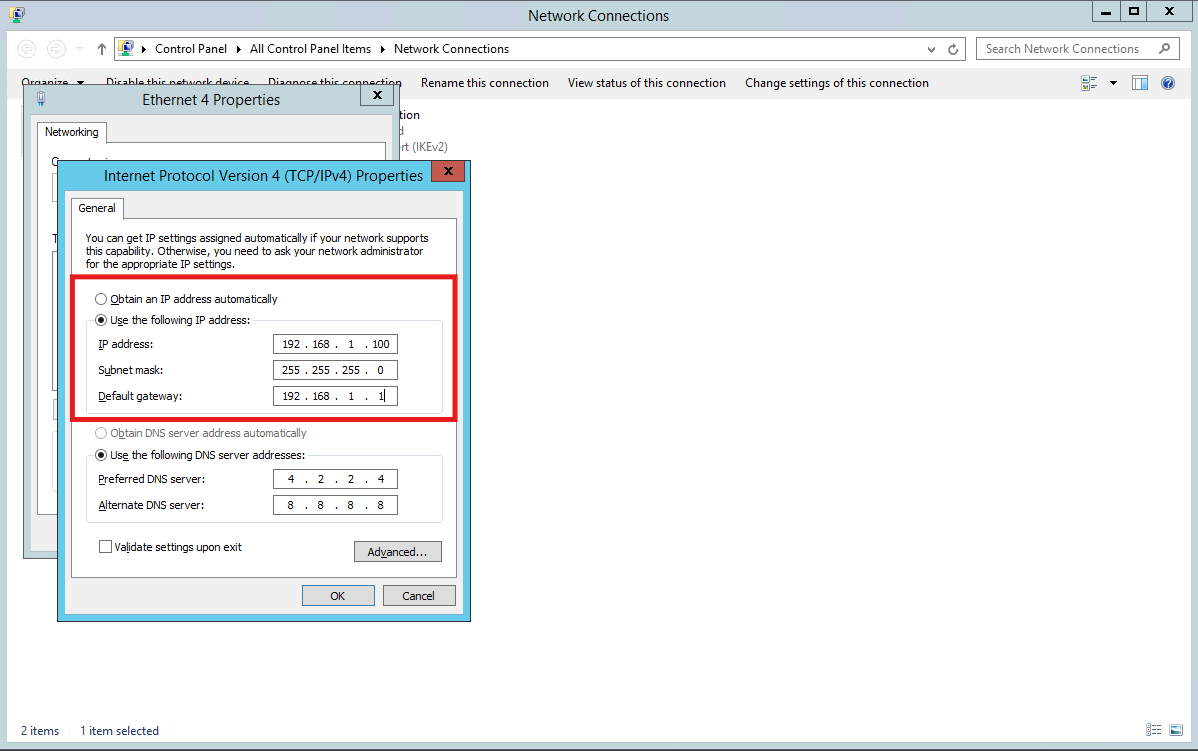
  2. Open the properties of the verified adapter, then Internet Protocol Version 4 (TCP/IPv4).
  3. Update only the intended address and gateway using the EDBB-assigned values. Check Advanced settings for additional addresses before overwriting anything.
  4. Preserve unrelated secondary addresses, DNS and routes unless the change explicitly requires updating them.
  5. Apply the change and inspect the configuration again.
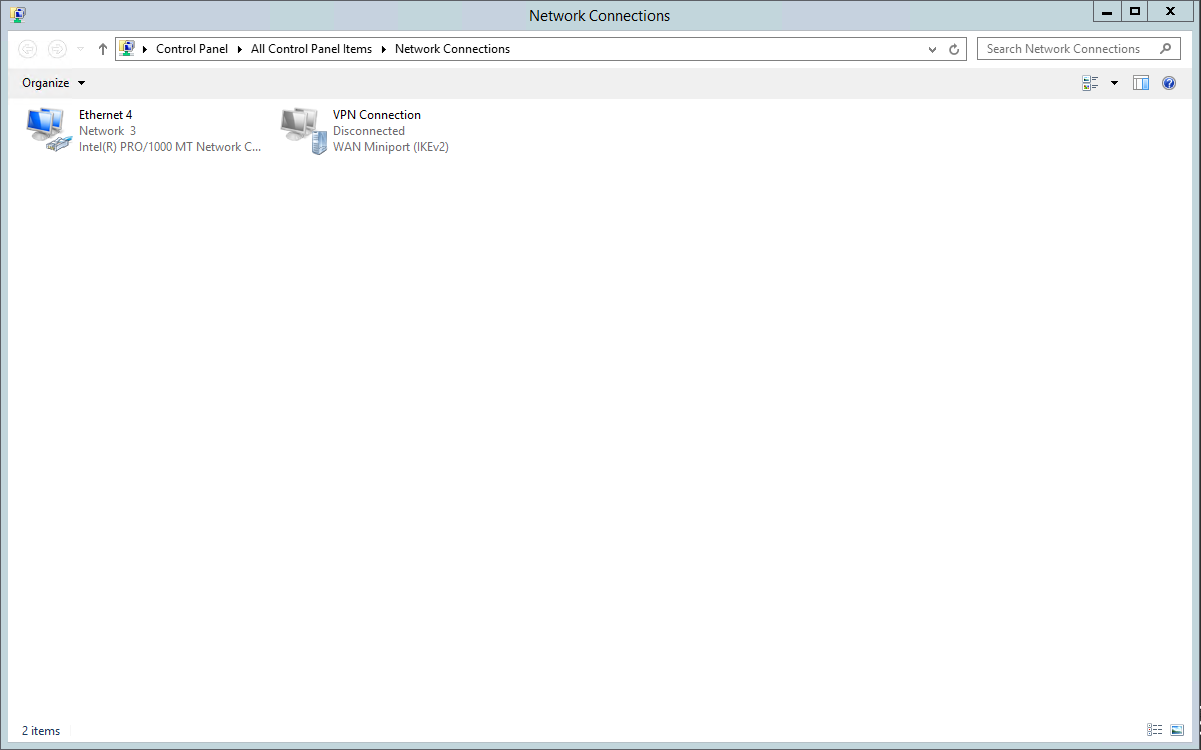
The existing screenshots illustrate the Windows dialogs. The private IP and DNS values pictured are examples, not your EDBB network settings; use the values assigned to your VPS.
Windows Network Connections showing the Ethernet adapter
IPv4 properties dialog; replace the pictured example values with your assigned settings

Verify and recover

Test the gateway, an external destination and name resolution separately. Reconnect through RDP to the new address, and update DNS, application bindings, allowlists and monitoring where necessary. If connectivity fails, use the console to compare and restore the recorded configuration. Do not repeatedly remove all addresses or reinstall the VPS as a network repair. Contact support@edbb.com if the assigned parameters appear inconsistent.