> ## Documentation Index
> Fetch the complete documentation index at: https://docs.edbb.com/llms.txt
> Use this file to discover all available pages before exploring further.
# VPS IP Address Settings & Network Info
> Find IPv4, IPv6, gateway, and DNS details for your VPS on the Network tab of the EDBB Control Panel.
## Network Tab Overview
The Network tab shows every IP assigned to your VPS plus the gateways and DNS resolvers you need when configuring the operating system. Use it as your source of truth before editing network interfaces inside the guest OS.
***
## Step 1 – Open the Network Tab
Visit the EDBB Control Panel, go to Services, and select your VPS.
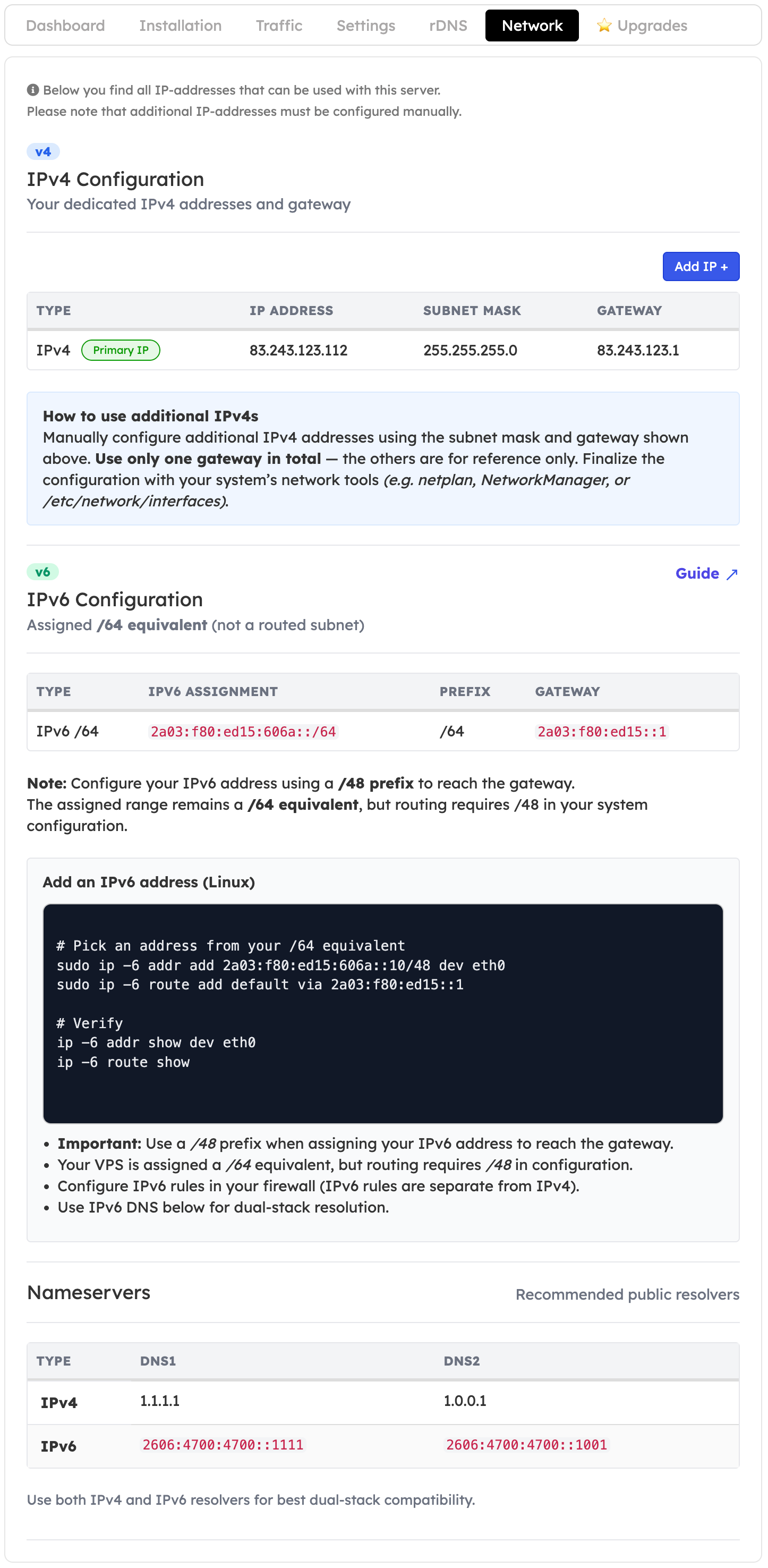
Click the Network tab in the service navigation. The page lists IPv4, IPv6, and DNS information.
 ***
## What the Tab Shows
Dedicated IPv4 addresses, subnet mask, and gateway. Use these values when adding or reconfiguring addresses in your OS.
Your assigned /64 equivalent range, gateway, and a reminder to configure routes with a /48 prefix. Dual-stack tips are provided for Linux and other OSes.
Recommended public resolvers (IPv4 and IPv6) for dual-stack compatibility.
The **Add IP** button (when available) creates requests for additional IPv4 addresses that support team members can review.
***
## Tips for Using the Data
* Configure additional IPv4 addresses using the subnet mask and gateway shown. Use only one gateway in your OS configuration.
* For IPv6, assign addresses from your range and route traffic through the listed gateway using a /48 prefix.
* Apply DNS entries directly in your operating system or cloud-init user-data so services resolve correctly.
* Need to change or order more addresses? Follow the Change IP or Order Additional IPv4 guides.
***
## What the Tab Shows
Dedicated IPv4 addresses, subnet mask, and gateway. Use these values when adding or reconfiguring addresses in your OS.
Your assigned /64 equivalent range, gateway, and a reminder to configure routes with a /48 prefix. Dual-stack tips are provided for Linux and other OSes.
Recommended public resolvers (IPv4 and IPv6) for dual-stack compatibility.
The **Add IP** button (when available) creates requests for additional IPv4 addresses that support team members can review.
***
## Tips for Using the Data
* Configure additional IPv4 addresses using the subnet mask and gateway shown. Use only one gateway in your OS configuration.
* For IPv6, assign addresses from your range and route traffic through the listed gateway using a /48 prefix.
* Apply DNS entries directly in your operating system or cloud-init user-data so services resolve correctly.
* Need to change or order more addresses? Follow the Change IP or Order Additional IPv4 guides.