> ## Documentation Index
> Fetch the complete documentation index at: https://docs.edbb.com/llms.txt
> Use this file to discover all available pages before exploring further.
# Windows Remote Desktop Access
> Launch Remote Desktop from Windows or macOS to reach your EDBB Windows VPS in a secure graphical session.
export const CtaButton = ({label, link, openInNewTab}) =>
{label}
;
## Connect to Your Windows VPS
Remote Desktop Protocol (RDP) delivers full graphical control of your Windows VPS. Bring the server’s IPv4 address, the Administrator password you set in the portal, and a stable network connection.
Need to deploy Windows first? Reinstall from the EDBB Control Panel with the OS reinstall guide.
***
## Why Use RDP
Interact with the VPS as if you were sitting in front of the console—perfect for GUI apps, MMC tools, and quick configuration checks.
RDP sessions are encrypted end-to-end. Combine it with the portal’s one-time console access for password resets or emergency recovery.
Microsoft ships native clients for Windows and macOS, and open-source alternatives exist for Linux—use whichever device you prefer.
***
## Connect from Windows Desktop
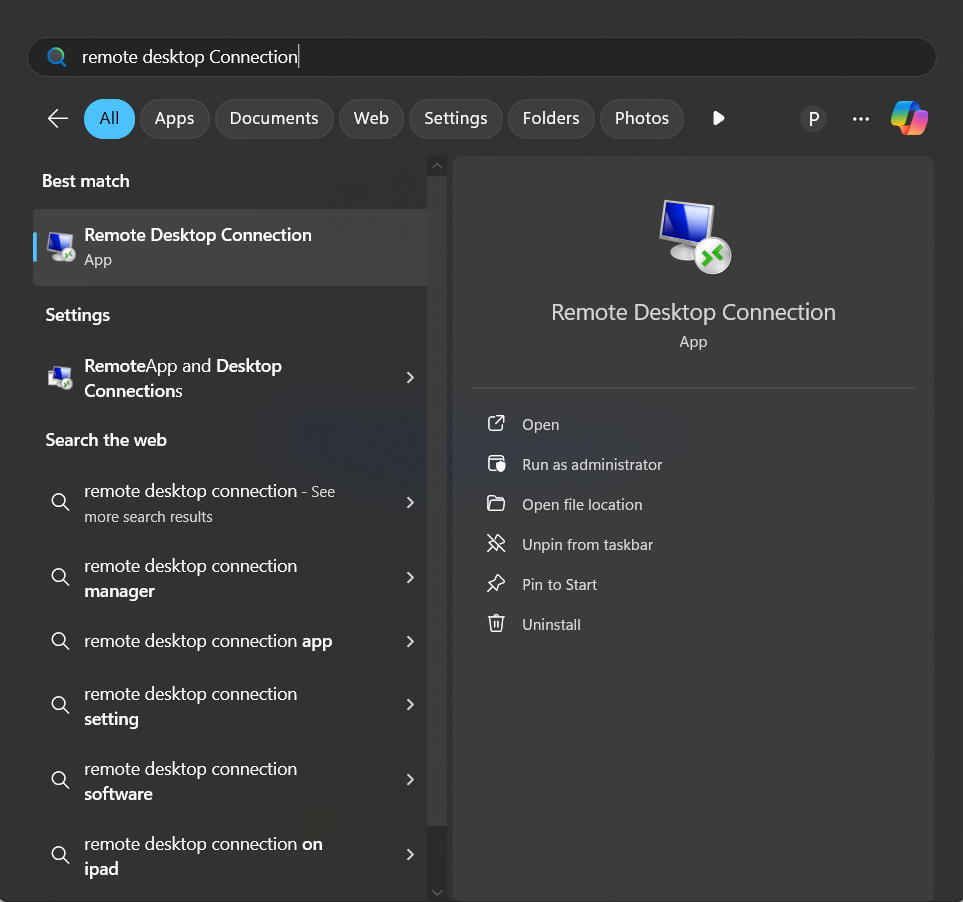
Press the Windows key, type Remote Desktop Connection, and launch the desktop app. Prefer a shortcut? Press Win + R, enter mstsc, then click OK.
 In the Computer field, paste the IPv4 address (or hostname) from your welcome email. Click Show Options to expand the dialogue before you connect.
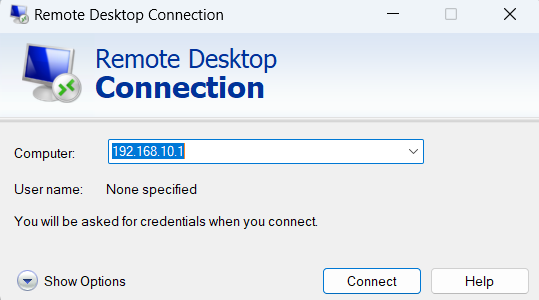 Unless you created a custom user, type Administrator. Leave “Ask for credentials every time” enabled if multiple people share the workstation.
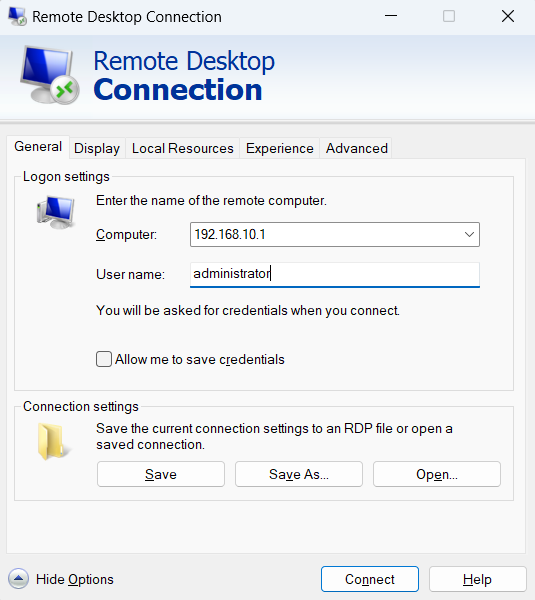 Click Connect, enter the VPS password, and accept the certificate warning. Tick “Don’t ask me again” once you trust the fingerprint so the prompt stays hidden next time.
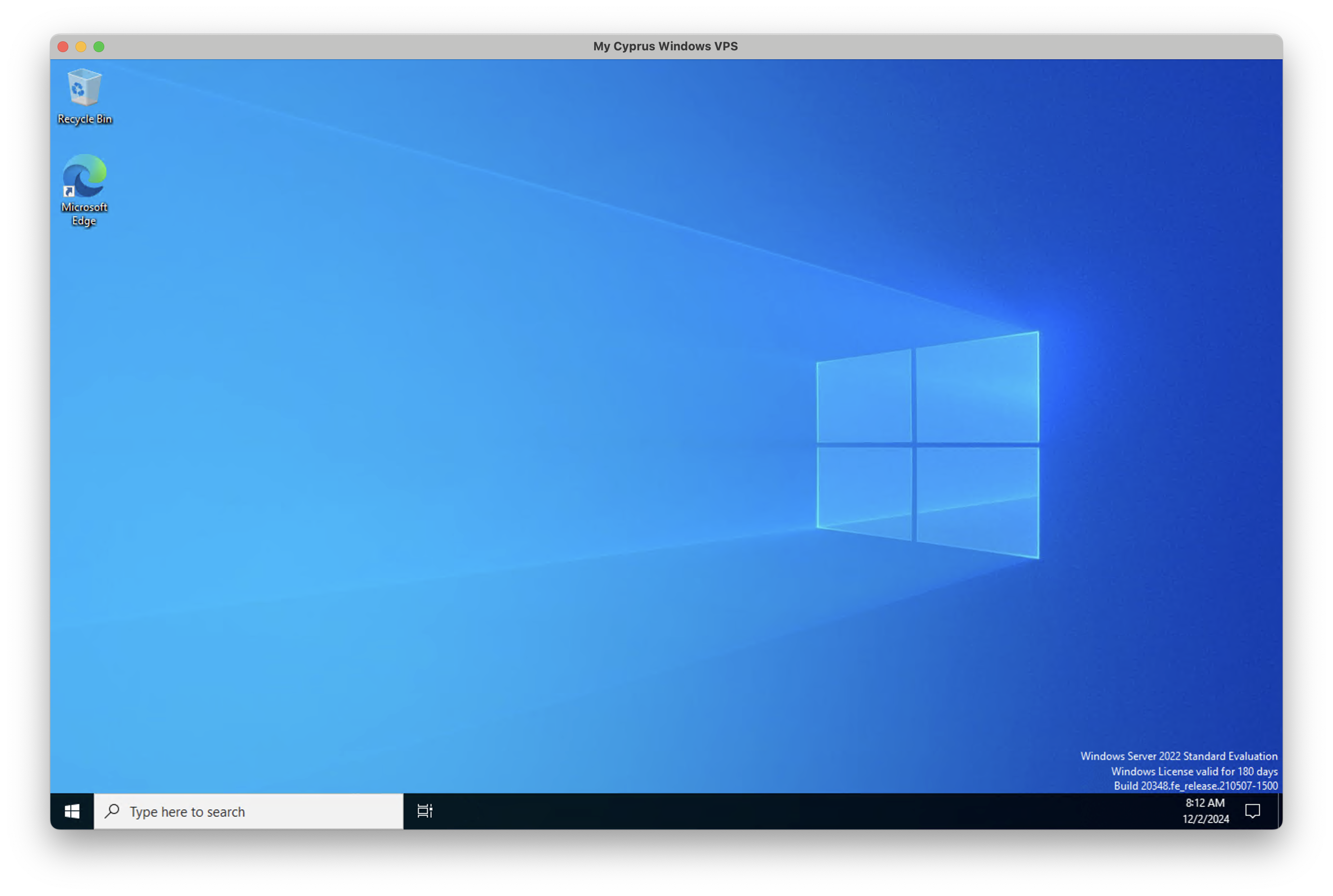
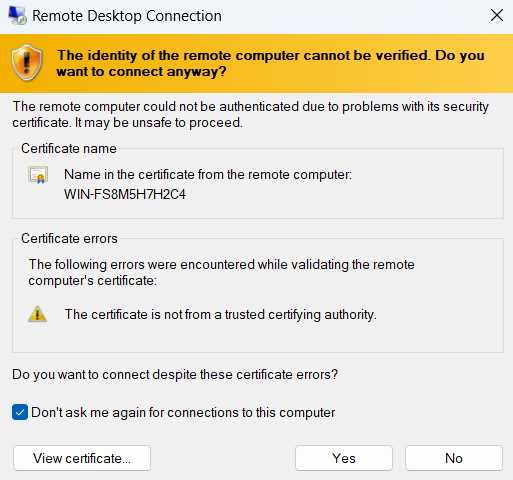 Once authenticated, the Windows desktop loads and you can begin managing your VPS. Close the session any time via **Start → Sign out** or by closing the RDP window.
***
## macOS Client (Microsoft Windows App)
Download the free client (formerly Microsoft Remote Desktop) from the Mac App Store.
Once authenticated, the Windows desktop loads and you can begin managing your VPS. Close the session any time via **Start → Sign out** or by closing the RDP window.
***
## macOS Client (Microsoft Windows App)
Download the free client (formerly Microsoft Remote Desktop) from the Mac App Store.
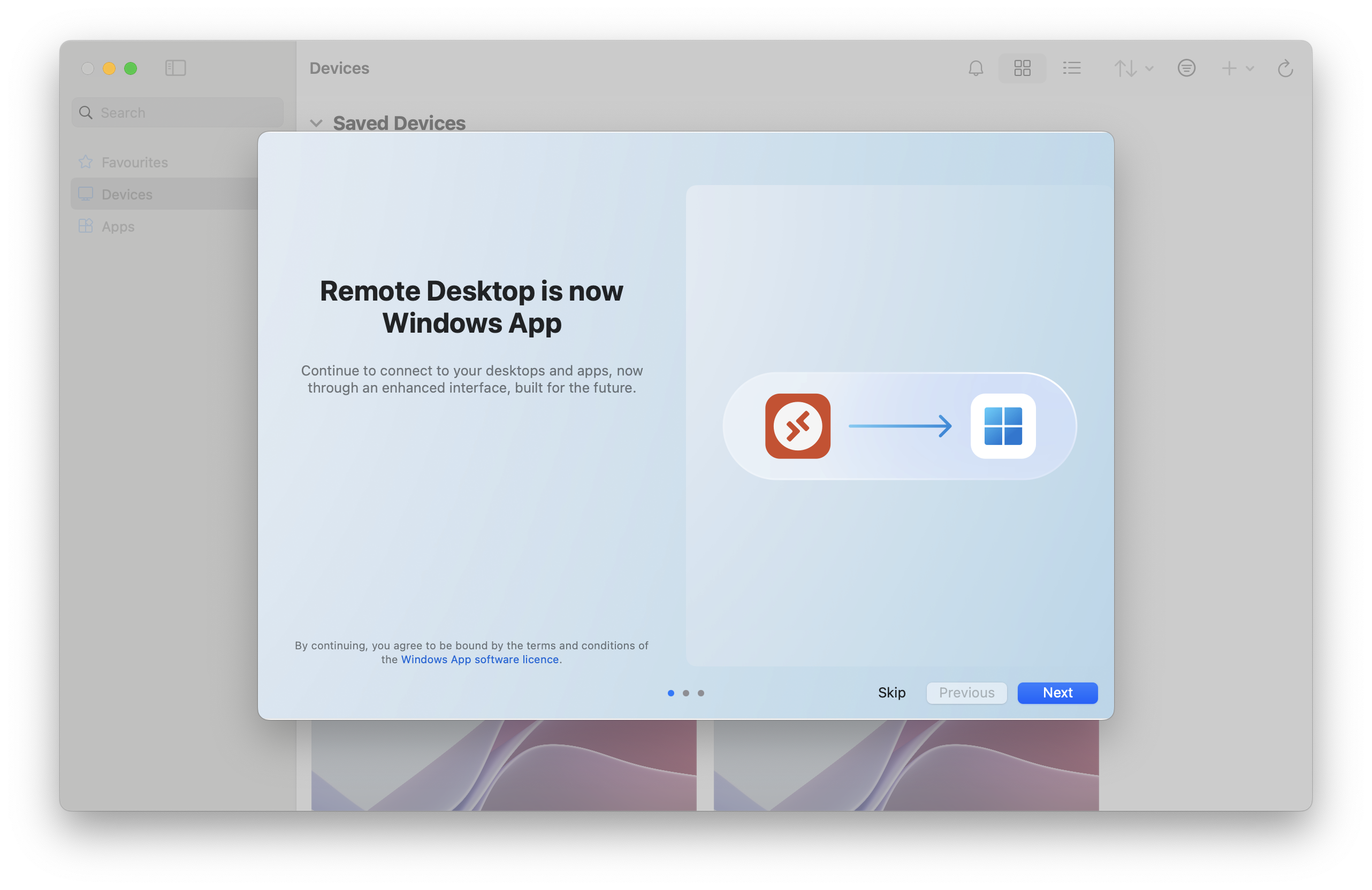 Open the app, click the + button, choose Add PC, and enter the VPS IPv4 address. Give it a friendly name so you recognise it later.
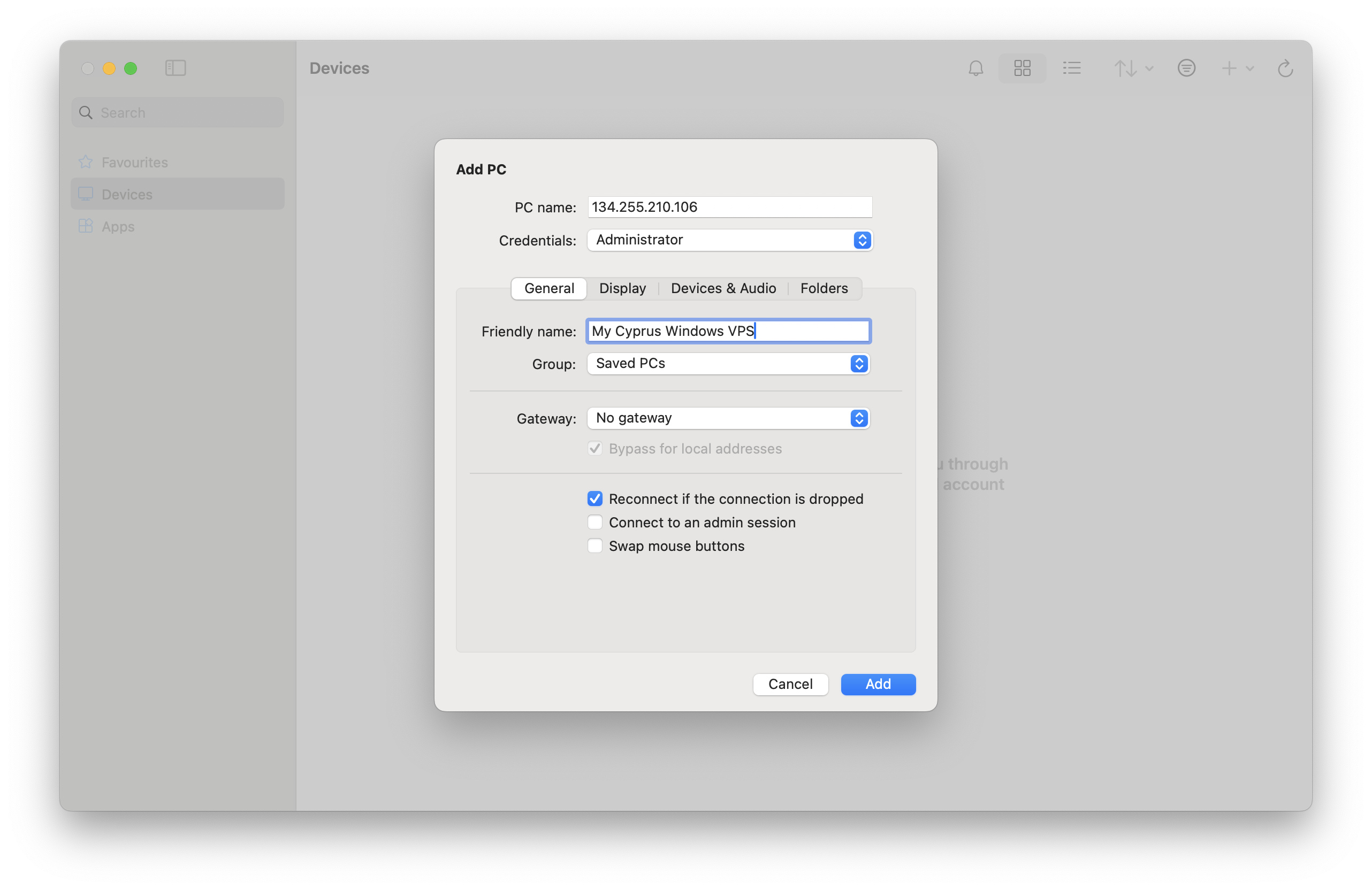 Select Administrator (or your custom user). Save the connection and double-click the tile to launch it.
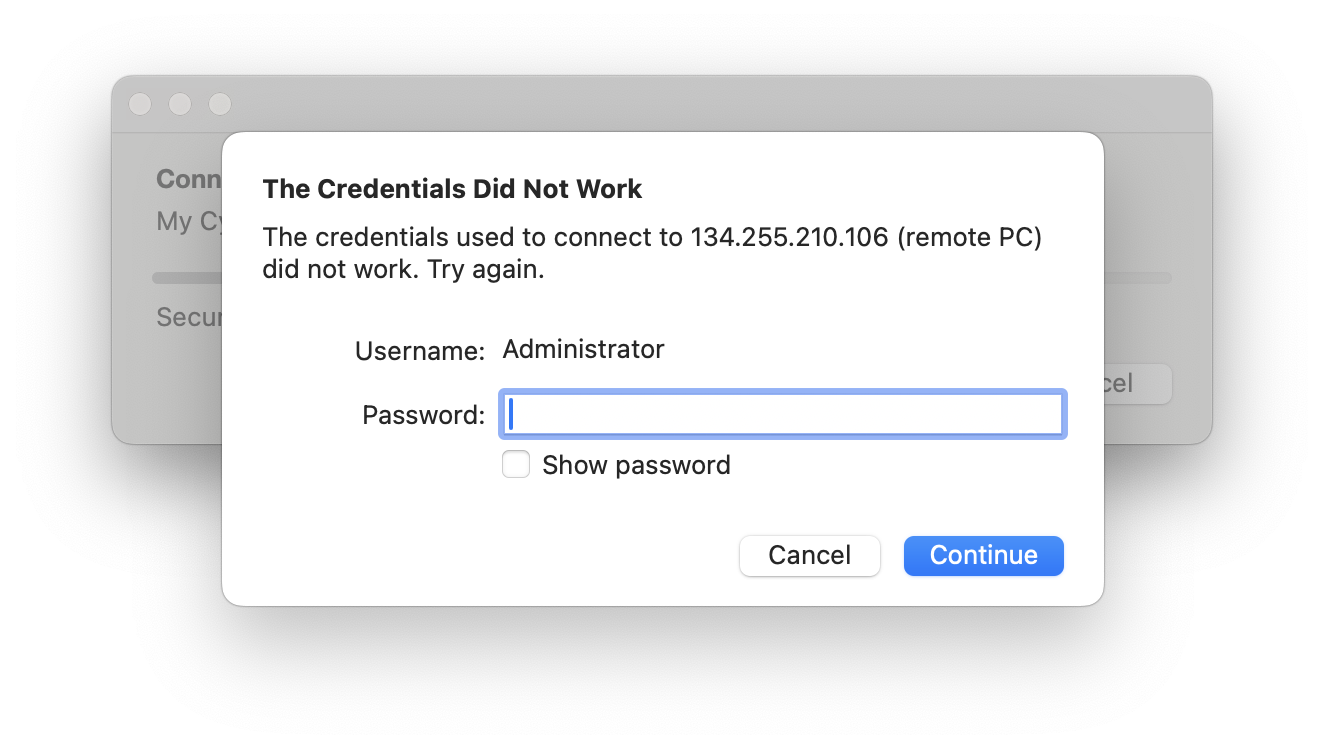
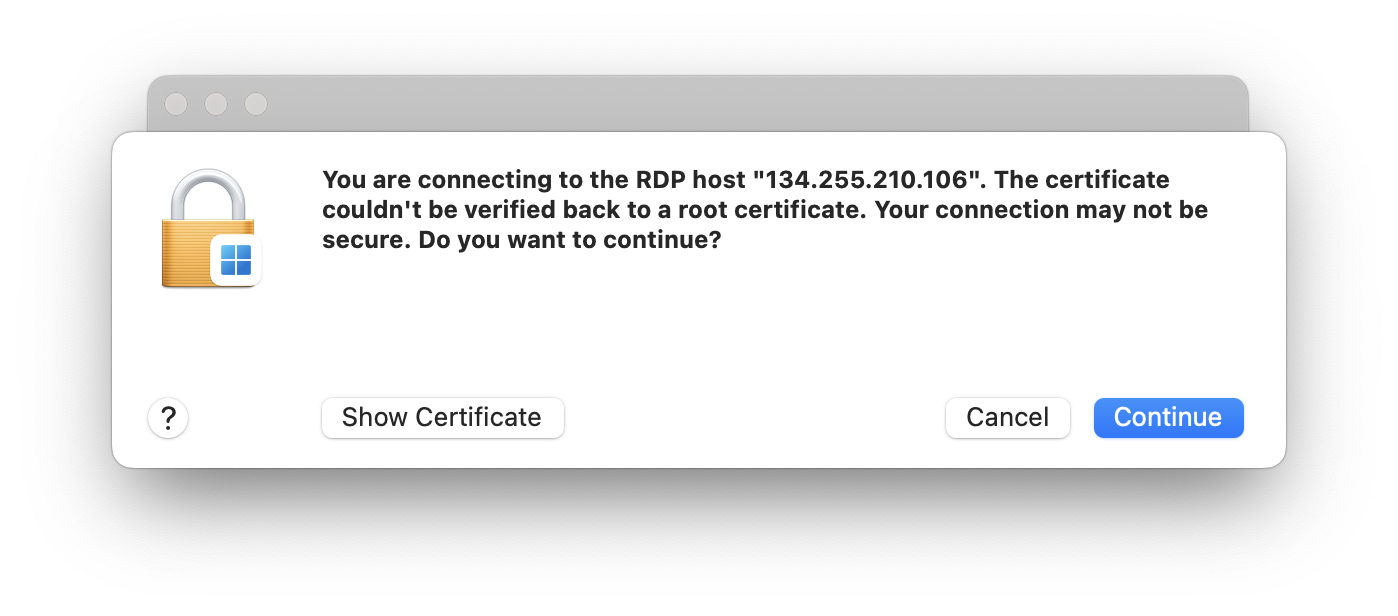 macOS will ask about certificates and optionally keychain storage—press Continue. Enter the password and you’ll land on the Windows desktop.
 Pro tip: If you’re using a MacBook, enable “Fit session to window” in the connection settings for a smoother Retina experience.
 ***
## Keep RDP Secure
* Rotate the Administrator password regularly and store it in a password manager.
* Use the portal VNC console to disable/enable RDP if you ever need to lock access quickly.
* Maintain Windows Updates (`Settings → Windows Update`) so security patches install promptly.
***
## Keep RDP Secure
* Rotate the Administrator password regularly and store it in a password manager.
* Use the portal VNC console to disable/enable RDP if you ever need to lock access quickly.
* Maintain Windows Updates (`Settings → Windows Update`) so security patches install promptly.