> ## Documentation Index
> Fetch the complete documentation index at: https://docs.edbb.com/llms.txt
> Use this file to discover all available pages before exploring further.
# Power Cycle or Reboot a VPS
> Control VPS power states from the EDBB Control Panel—restart, stop, or start with a couple of clicks.
Prefer graceful reboots whenever possible: run sudo shutdown -h now or sudo halt inside Linux (or the equivalent command in Windows), then start the VPS from the Control Panel. This keeps filesystems and services healthy before you resort to a forced power cycle.
## Restart a Running VPS
Sign in to the EDBB Control Panel, go to Services, and select the VPS you want to reboot.
Click the arrow next to the green Server On button and select Restart Server. The VPS powers off and back on in one action.
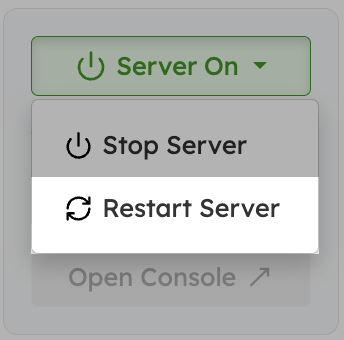 Restart performs an immediate power cycle at the hypervisor level. If the operating system still responds, run its built-in reboot command first for a graceful shutdown.
***
## Stop VPS
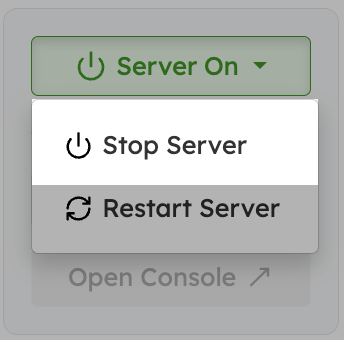
From the same dropdown next to Server On, choose Stop Server to shut the VPS down.
The service status switches to Stopped once the hypervisor powers it off. Console access ends immediately.
Restart performs an immediate power cycle at the hypervisor level. If the operating system still responds, run its built-in reboot command first for a graceful shutdown.
***
## Stop VPS
From the same dropdown next to Server On, choose Stop Server to shut the VPS down.
The service status switches to Stopped once the hypervisor powers it off. Console access ends immediately.
 ***
## Start VPS
When the instance is stopped, the button turns blue and reads Start Server. Click it to boot the VM.
***
## Start VPS
When the instance is stopped, the button turns blue and reads Start Server. Click it to boot the VM.
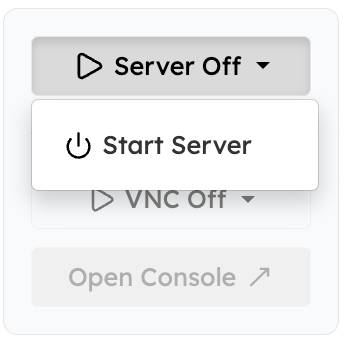 Once the status changes to Running, reopen the console or reconnect over SSH/RDP to resume work.
Stop is equivalent to pulling the power cable. Use it only if the guest OS no longer reacts to `shutdown` or `poweroff` commands.
Once the status changes to Running, reopen the console or reconnect over SSH/RDP to resume work.
Stop is equivalent to pulling the power cable. Use it only if the guest OS no longer reacts to `shutdown` or `poweroff` commands.