> ## Documentation Index
> Fetch the complete documentation index at: https://docs.edbb.com/llms.txt
> Use this file to discover all available pages before exploring further.
# Recover a Linux VPS with rescue media
> Boot rescue media from the EDBB panel, inspect the installed Linux system and recover files or configuration when the VPS will not start or accept SSH.
A rescue ISO starts a separate Linux environment without reinstalling the VPS. Use it to inspect a system that will not boot, recover files or repair a configuration mistake.
If Linux still boots, first use the [VNC console](/vps-management/enable-vnc-server) and [connectivity checks](/faq/ip-addresses/network-is-down). You may be able to fix the problem without rescue media.
Do not select an installer, format a partition or reinstall the operating system when you want to keep its data. Encrypted disks need their recovery key. If the disk reports read errors or holds the only copy of important data, avoid write operations until you have a recovery plan.
## Boot into rescue mode
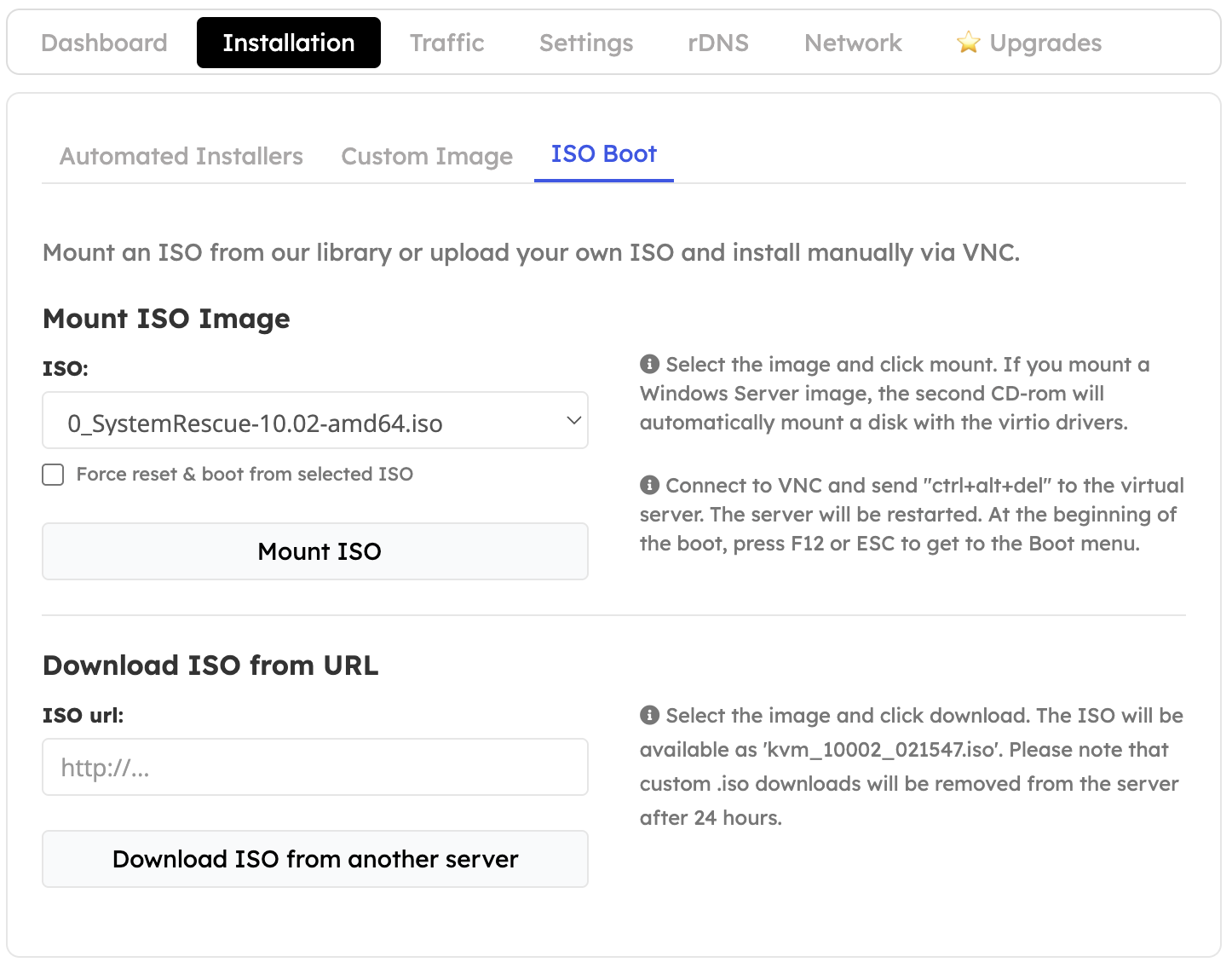
Sign in to the [EDBB Control Panel](https://my.edbb.com/clientarea.php), open your VPS and select **Installation → ISO Boot**. Save work and shut down the installed OS cleanly first if it still responds.
Select the available Linux rescue image, such as **SystemRescue**, enable **Force reset & boot from the selected ISO**, then click **Mount ISO**. This interrupts the running VPS.
 Open the VNC console and follow the rescue image's boot prompts. The shell now belongs to the rescue environment, not your installed Linux system.
## Identify the installed system
List disks and filesystems before mounting anything:
```bash theme={"system"}
lsblk -f
blkid
```
Look for the VPS's root filesystem. It may be a partition such as `/dev/vda1` or a logical volume under `/dev/mapper/`. For LVM, inspect `pvs`, `vgs` and `lvs`; if the volumes are inactive, `vgchange -ay` activates them without formatting them.
The following example assumes the root filesystem is **ext4 on `/dev/vda1`**. Replace the device with the one you identified. Mount it without journal replay for an initial read-only inspection:
```bash theme={"system"}
mkdir -p /mnt/system
mount -o ro,noload /dev/vda1 /mnt/system
ls /mnt/system/etc
```
For **XFS**, use `mount -o ro,norecovery /dev/YOUR_ROOT_DEVICE /mnt/system` instead. These options are filesystem-specific. Stop if you cannot identify the filesystem or mounting reports damage.
## Inspect the problem
The installed system's files are now under `/mnt/system`:
| Problem | Files or checks |
| ---------------------------------- | ------------------------------------------------------------------------------------------------------------------------------------------ |
| Wrong static address or gateway | `/mnt/system/etc/netplan/`, `/mnt/system/etc/network/` or NetworkManager profiles. Compare with the EDBB Network tab. |
| SSH stopped working after a change | `/mnt/system/etc/ssh/sshd_config` and included files under `sshd_config.d/`. Review the last change. |
| Firewall blocks access | Saved UFW, nftables or firewalld configuration under `/mnt/system/etc/`. Restore a known working rule set rather than deleting every rule. |
| System will not boot | Check the console error, `/mnt/system/etc/fstab`, recent configuration changes and persistent logs under `/mnt/system/var/log/`. |
| Forgotten root password | Follow the separate [root-password reset guide](/vps-management/reset-root-password). |
You can copy needed files to a separate system before attempting repairs. Keep configuration backups and private keys secure.
## Repair a known configuration mistake
Only proceed when you have identified the correct filesystem, have a backup and know which change to undo. Unmount the read-only filesystem before mounting it normally for editing. For the ext4 example:
```bash theme={"system"}
umount /mnt/system
mount /dev/vda1 /mnt/system
```
If it cannot mount normally, stop; do not force it or run repair commands on a mounted filesystem. Back up the affected configuration file, then restore its known working version or correct the specific mistake. Preserve its ownership and permissions.
Changing `/etc/ssh` in the rescue system changes the rescue environment. To edit your installation, use `/mnt/system/etc/ssh`. Likewise, stopping a service in rescue mode does not stop or repair the service in the installed system.
## Return to the installed system
```bash theme={"system"}
sync
umount /mnt/system
```
Close shells or file browsers using the mount if it is busy. In **Installation → ISO Boot**, unmount the ISO and boot from the local disk. Watch startup in the console, then test a fresh SSH connection and the affected application.
If you need support, send the VPS IP, the console error and a description of the last change to [support@edbb.com](mailto:support@edbb.com). Do not send passwords or recovery keys.
Open the VNC console and follow the rescue image's boot prompts. The shell now belongs to the rescue environment, not your installed Linux system.
## Identify the installed system
List disks and filesystems before mounting anything:
```bash theme={"system"}
lsblk -f
blkid
```
Look for the VPS's root filesystem. It may be a partition such as `/dev/vda1` or a logical volume under `/dev/mapper/`. For LVM, inspect `pvs`, `vgs` and `lvs`; if the volumes are inactive, `vgchange -ay` activates them without formatting them.
The following example assumes the root filesystem is **ext4 on `/dev/vda1`**. Replace the device with the one you identified. Mount it without journal replay for an initial read-only inspection:
```bash theme={"system"}
mkdir -p /mnt/system
mount -o ro,noload /dev/vda1 /mnt/system
ls /mnt/system/etc
```
For **XFS**, use `mount -o ro,norecovery /dev/YOUR_ROOT_DEVICE /mnt/system` instead. These options are filesystem-specific. Stop if you cannot identify the filesystem or mounting reports damage.
## Inspect the problem
The installed system's files are now under `/mnt/system`:
| Problem | Files or checks |
| ---------------------------------- | ------------------------------------------------------------------------------------------------------------------------------------------ |
| Wrong static address or gateway | `/mnt/system/etc/netplan/`, `/mnt/system/etc/network/` or NetworkManager profiles. Compare with the EDBB Network tab. |
| SSH stopped working after a change | `/mnt/system/etc/ssh/sshd_config` and included files under `sshd_config.d/`. Review the last change. |
| Firewall blocks access | Saved UFW, nftables or firewalld configuration under `/mnt/system/etc/`. Restore a known working rule set rather than deleting every rule. |
| System will not boot | Check the console error, `/mnt/system/etc/fstab`, recent configuration changes and persistent logs under `/mnt/system/var/log/`. |
| Forgotten root password | Follow the separate [root-password reset guide](/vps-management/reset-root-password). |
You can copy needed files to a separate system before attempting repairs. Keep configuration backups and private keys secure.
## Repair a known configuration mistake
Only proceed when you have identified the correct filesystem, have a backup and know which change to undo. Unmount the read-only filesystem before mounting it normally for editing. For the ext4 example:
```bash theme={"system"}
umount /mnt/system
mount /dev/vda1 /mnt/system
```
If it cannot mount normally, stop; do not force it or run repair commands on a mounted filesystem. Back up the affected configuration file, then restore its known working version or correct the specific mistake. Preserve its ownership and permissions.
Changing `/etc/ssh` in the rescue system changes the rescue environment. To edit your installation, use `/mnt/system/etc/ssh`. Likewise, stopping a service in rescue mode does not stop or repair the service in the installed system.
## Return to the installed system
```bash theme={"system"}
sync
umount /mnt/system
```
Close shells or file browsers using the mount if it is busy. In **Installation → ISO Boot**, unmount the ISO and boot from the local disk. Watch startup in the console, then test a fresh SSH connection and the affected application.
If you need support, send the VPS IP, the console error and a description of the last change to [support@edbb.com](mailto:support@edbb.com). Do not send passwords or recovery keys.