> ## Documentation Index
> Fetch the complete documentation index at: https://docs.edbb.com/llms.txt
> Use this file to discover all available pages before exploring further.
# Update the IPv4 Address in Windows Server
> Collect the new IPv4 details from the Network tab, change them in Windows Server, and verify connectivity.
## Change the IPv4 Address in Windows Server
Before editing Windows networking, note the IPv4 address, subnet, gateway, and DNS values from the EDBB Control Panel. Changing settings interrupts connectivity—plan a brief maintenance window.
***
## Step 1 – Collect the New Settings
Sign in to the EDBB Control Panel and open the Network tab on your VPS. Record the IPv4 details exactly as shown.
If multiple addresses are assigned, choose which will be primary (outbound) and which will be secondary.
***
## Step 2 – Connect to the Server
* Use an RDP session if the current address is reachable.
* If the old IP is already removed, enable VNC in the quick actions and click Open Console to work from the portal console.
***
## Step 3 – Open Adapter Properties
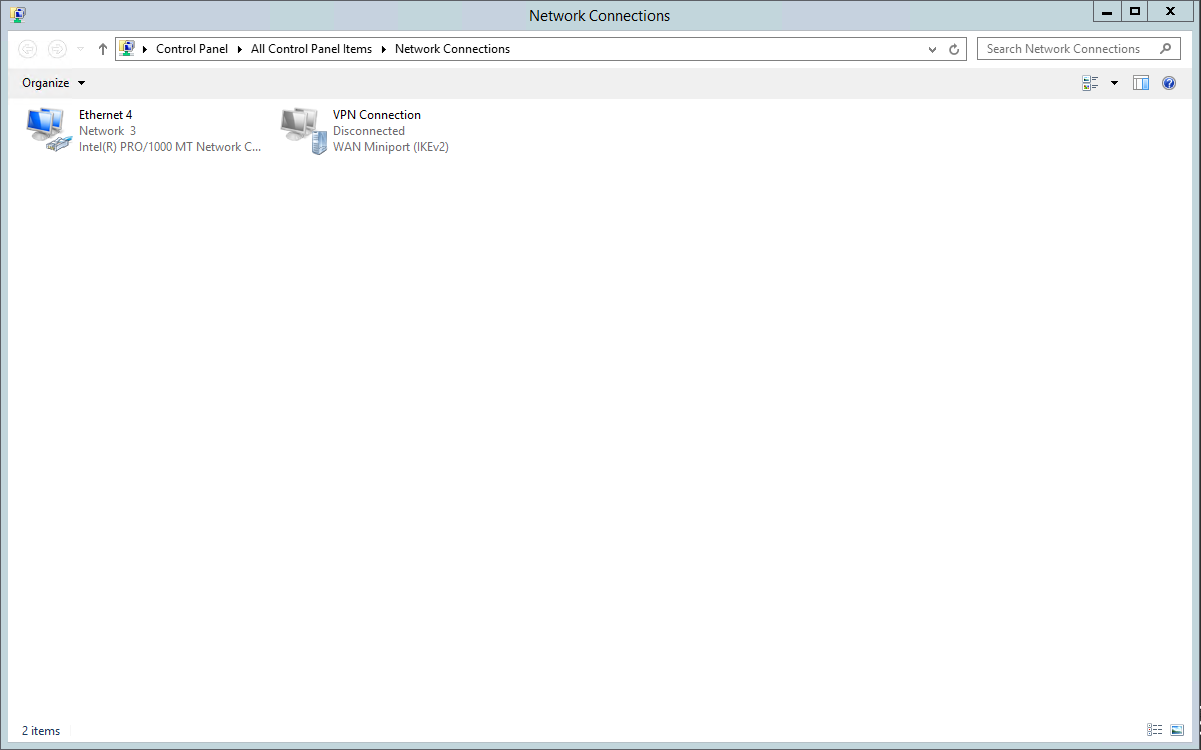
1. Press `Win + R`, type `ncpa.cpl`, and press **Enter**. The **Network Connections** window opens.
2. Right-click your main adapter (typically **Ethernet**) and choose **Properties**.
 ***
## Step 4 – Enter the New IPv4 Values
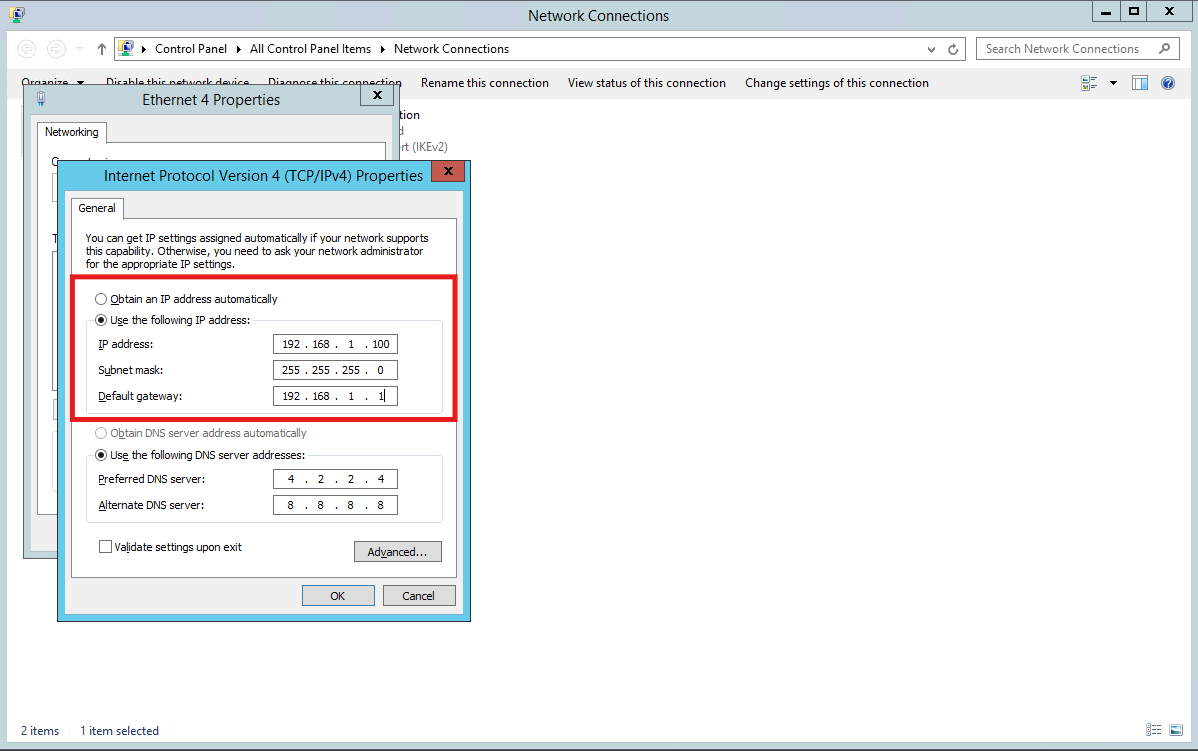
1. Highlight **Internet Protocol Version 4 (TCP/IPv4)** and click **Properties**.
2. Select **Use the following IP address** and input the data from the Control Panel (IP, subnet mask, default gateway).
3. If DNS servers are listed, choose **Use the following DNS server addresses** and add them.
***
## Step 4 – Enter the New IPv4 Values
1. Highlight **Internet Protocol Version 4 (TCP/IPv4)** and click **Properties**.
2. Select **Use the following IP address** and input the data from the Control Panel (IP, subnet mask, default gateway).
3. If DNS servers are listed, choose **Use the following DNS server addresses** and add them.
 Click **OK**, then **Close** to apply the configuration.
Need to assign secondary IPs? Click **Advanced…** in the IPv4 properties dialog and add them under IP settings.
***
## Step 5 – Verify with PowerShell
Open PowerShell as Administrator and confirm the new values:
```powershell theme={"system"}
Get-NetIPAddress -AddressFamily IPv4 | Format-Table InterfaceAlias,IPAddress,PrefixLength
Get-NetIPConfiguration | Format-List InterfaceAlias,IPv4DefaultGateway,DNSServer
```
If something looks wrong, reopen the adapter properties and correct it.
***
## Step 6 – Test Connectivity
```powershell theme={"system"}
ping 203.0.113.1 # replace with your gateway
ping edbb.com
```
Reconnect via RDP using the new IPv4 address once pings succeed. Disable VNC if you only enabled it for this change.
***
## Automation Option
Use PowerShell for scripted changes (update values before running):
```powershell theme={"system"}
$iface = 'Ethernet'
Remove-NetIPAddress -InterfaceAlias $iface -AddressFamily IPv4 -Confirm:$false
New-NetIPAddress -InterfaceAlias $iface -IPAddress '203.0.113.50' -PrefixLength 24 -DefaultGateway '203.0.113.1'
Set-DnsClientServerAddress -InterfaceAlias $iface -ServerAddresses @('203.0.113.2','8.8.8.8')
```
***
## Final Checklist
* Update firewalls, monitoring, and documentation with the new IP.
* Restart services that bind to the old address (IIS sites, databases, etc.).
* Confirm scheduled tasks or backup jobs that reference the IP have been refreshed.
Your Windows Server now uses the new IPv4 settings supplied by EDBB.
Click **OK**, then **Close** to apply the configuration.
Need to assign secondary IPs? Click **Advanced…** in the IPv4 properties dialog and add them under IP settings.
***
## Step 5 – Verify with PowerShell
Open PowerShell as Administrator and confirm the new values:
```powershell theme={"system"}
Get-NetIPAddress -AddressFamily IPv4 | Format-Table InterfaceAlias,IPAddress,PrefixLength
Get-NetIPConfiguration | Format-List InterfaceAlias,IPv4DefaultGateway,DNSServer
```
If something looks wrong, reopen the adapter properties and correct it.
***
## Step 6 – Test Connectivity
```powershell theme={"system"}
ping 203.0.113.1 # replace with your gateway
ping edbb.com
```
Reconnect via RDP using the new IPv4 address once pings succeed. Disable VNC if you only enabled it for this change.
***
## Automation Option
Use PowerShell for scripted changes (update values before running):
```powershell theme={"system"}
$iface = 'Ethernet'
Remove-NetIPAddress -InterfaceAlias $iface -AddressFamily IPv4 -Confirm:$false
New-NetIPAddress -InterfaceAlias $iface -IPAddress '203.0.113.50' -PrefixLength 24 -DefaultGateway '203.0.113.1'
Set-DnsClientServerAddress -InterfaceAlias $iface -ServerAddresses @('203.0.113.2','8.8.8.8')
```
***
## Final Checklist
* Update firewalls, monitoring, and documentation with the new IP.
* Restart services that bind to the old address (IIS sites, databases, etc.).
* Confirm scheduled tasks or backup jobs that reference the IP have been refreshed.
Your Windows Server now uses the new IPv4 settings supplied by EDBB.