> ## Documentation Index
> Fetch the complete documentation index at: https://docs.edbb.com/llms.txt
> Use this file to discover all available pages before exploring further.
# Upgrade VPS Components
> Add RAM, vCPU, disk, or IPs to your existing EDBB VPS without switching plans—learn the workflow, billing, and post-upgrade steps.
export const CtaButton = ({label, link, openInNewTab}) =>
{label}
;
# Upgrade VPS Components
Component upgrades extend the resources of your current plan—RAM, vCPU, Drive Boost storage, or IPv4 addresses—without changing tiers or reinstalling the OS.
## What You Can Extend
* Increase **RAM** for memory-intensive workloads.
* Add extra **vCPU** cores for parallel processing.
* Apply a **Drive Boost** to unlock additional disk space.
* Assign additional **IPv4 addresses**.
* Mix and match any combination of the above.
Billing is prorated just like plan upgrades—you pay only the difference for the days remaining in your billing cycle.
***
## Order a Component Upgrade via the Control Panel
Sign in at the EDBB Control Panel, go to Services, and choose the VPS you want to extend.
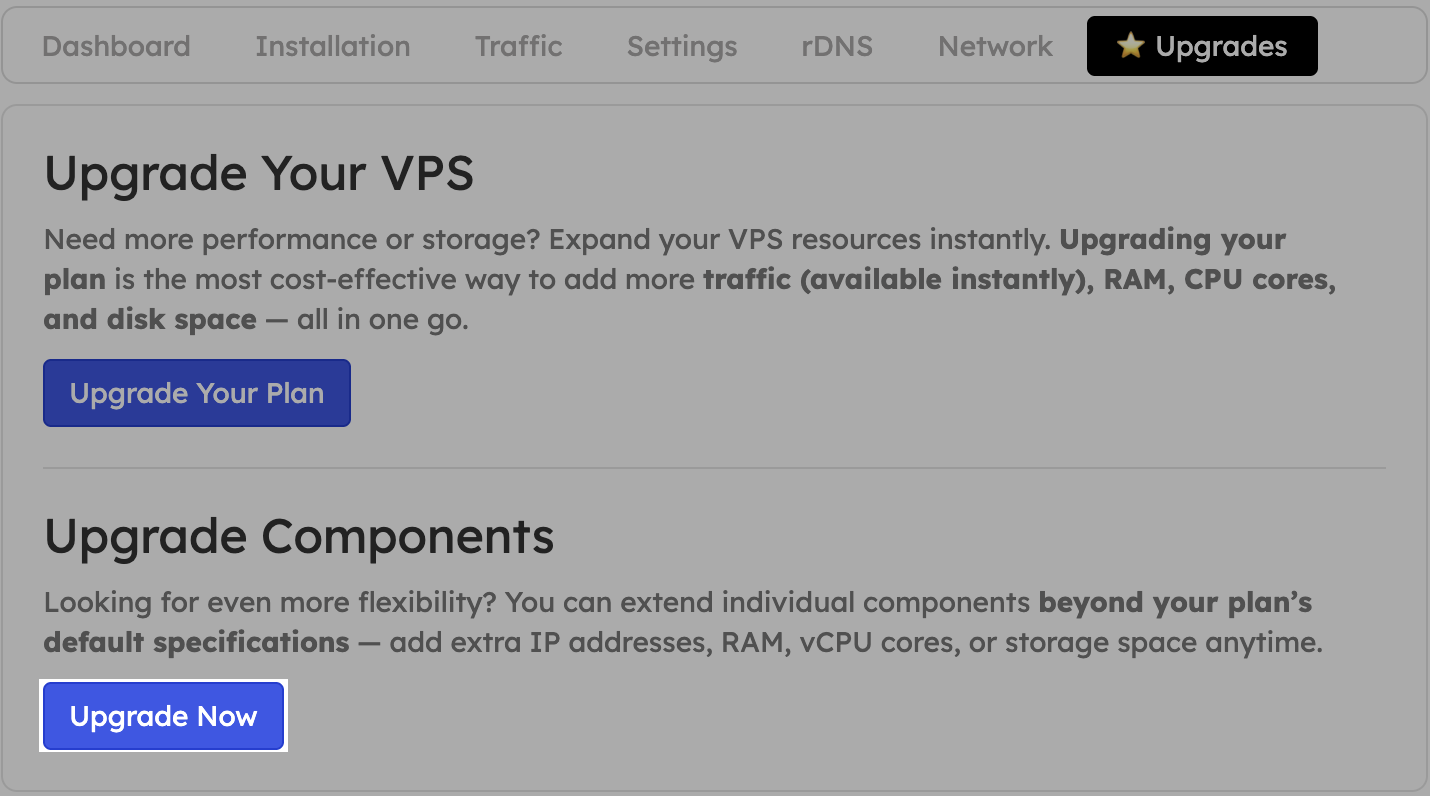
Click the Upgrade tab, then press the blue Upgrade Components button. The comparison page lists each resource you can increase.
Choose the additional RAM, vCPU, disk, or IPv4 addresses you need, pay the prorated invoice, and the changes apply automatically once payment clears.
Component upgrades may trigger a short reboot so the new resources take effect. Save your work before confirming the order.
***
## After Payment
* Upgrades are processed within minutes after payment confirmation.
* Expect an email summarising the change.
* **RAM & vCPU** require a cold reboot inside the OS.
* **IPv4 addresses** must be configured manually on the VPS.
* **Drive Boost** expands the virtual disk, but you decide when to grow partitions or filesystems.
Need a full plan change instead? See the higher-tier upgrade guide.
***
## Need More Traffic
Consider the traffic pool to top up bandwidth for any VPS in your account. Auto hydration can refill traffic automatically near 99% usage.