> ## Documentation Index
> Fetch the complete documentation index at: https://docs.edbb.com/llms.txt
> Use this file to discover all available pages before exploring further.
# Order a Standard IP change
> Replace an existing EDBB VPS IPv4 with a randomly assigned address. Select the VPS and old IP, review the one-time charge, then configure the replacement.
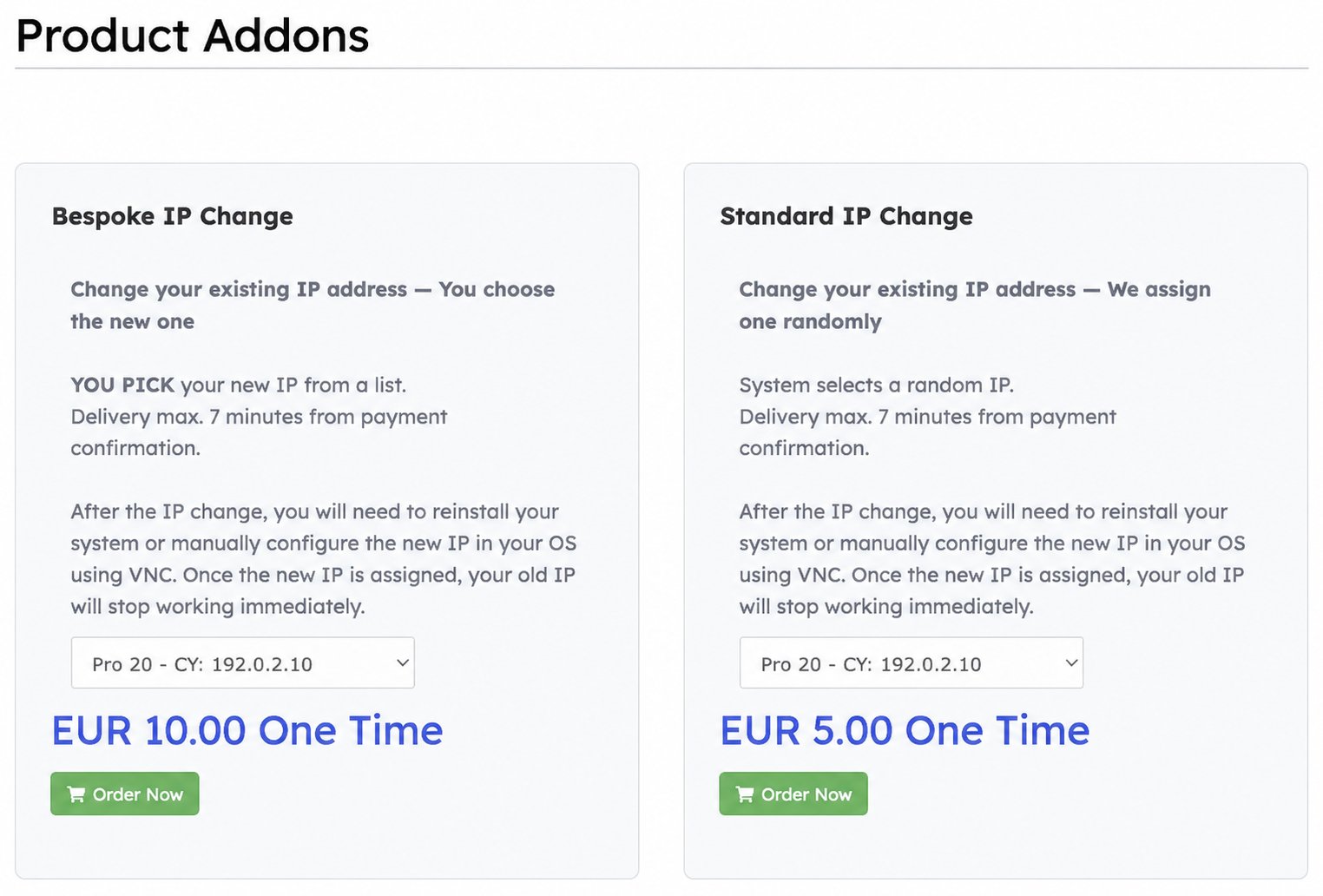
**Standard IP Change** replaces an existing VPS IPv4 with an address assigned randomly by the system. Choose this option when you do not need to select the new address yourself. For a choice from available addresses, use [Bespoke IP Change](/faq/ip-addresses/bespoke-ip-change).
The old IP stops working as soon as its replacement is assigned. Open the [VNC console](/vps-management/enable-vnc-server) beforehand and be ready to update the operating system's network configuration. Existing SSH, RDP and application connections to the old address will be interrupted.
## Find Standard IP Change
In the [EDBB Control Panel](https://my.edbb.com/clientarea.php), choose **Services → Order New Services → Product Addons**. You can also open [Product Addons directly](https://my.edbb.com/cart.php?gid=addons).
The listed charge is **EUR 5 one time**. Check the order summary for applicable VAT and the final total before paying. This replaces an address; it does not add another IPv4 to the VPS.
## Select the VPS and old address
In the **Standard IP Change** card, select your VPS from the dropdown. Check the plan, location code and current address, then click **Order Now** to add the change to the cart.
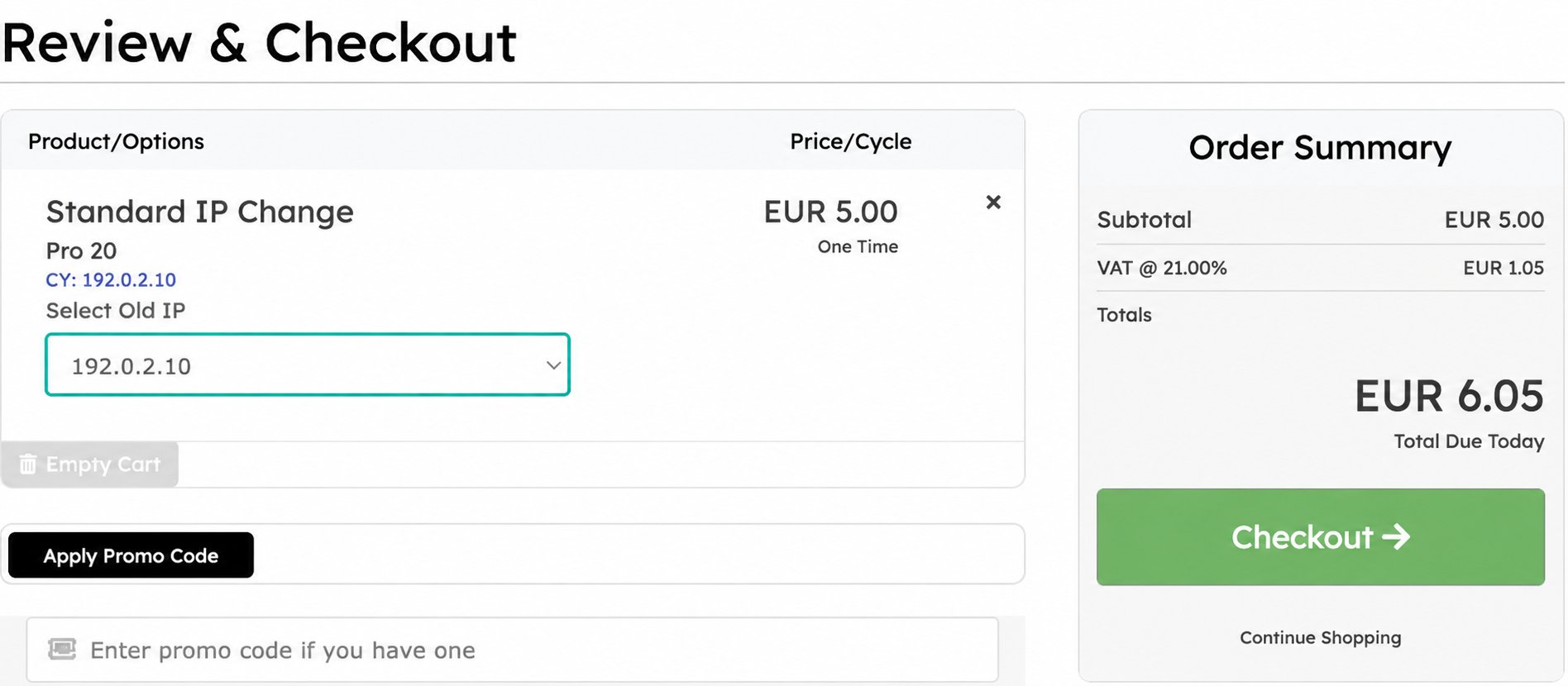
On **Review & Checkout**, choose the existing address you want to replace in **Select Old IP**. This identifies the address being removed.
Verify the service, old IP and total, then click **Checkout**. Review your billing details, choose a payment method, review the terms and complete the order when ready.
There is no **Select New IP** field for Standard. You cannot request a particular replacement or guarantee a different subnet through this option. Adding the item to the cart alone does not complete the order.
## After the replacement
The EDBB add-on page states delivery within **seven minutes of payment confirmation**. Check the assigned address and network settings in your VPS's **Network** tab.
Use VNC to configure the replacement in your operating system. Follow the [Ubuntu IP-change guide](/vps-management/change-ip-ubuntu-1804-to-2404) or [Windows IP-change guide](/vps-management/change-ip-windows) where applicable. Update DNS records, firewall allowlists, VPN endpoints and saved connections that use the old IP, then verify access through the replacement.
Reinstall only if you deliberately want a fresh system. [Reinstallation](/vps-management/reinstall-vps) erases the VPS disk; changing the network configuration manually preserves the installation.
An IP replacement does not guarantee access from a particular country, ISP or website, or a particular reputation or geolocation result.
For the one-time free change available during the first 24 hours, see [Change your VPS IP address](/faq/ip-addresses/change-ip-address).