> ## Documentation Index
> Fetch the complete documentation index at: https://docs.edbb.com/llms.txt
> Use this file to discover all available pages before exploring further.
# Configure Reverse DNS (PTR)
> Set or remove PTR records for your EDBB VPS IPv4/IPv6 directly in the Control Panel.
## Prep Checklist
Reverse DNS works best when the hostname already resolves forward to your VPS.
Create or update the A/AAAA record first so mail servers and reputation
services see a matching pair.
* 📌 Have the exact FQDN you want to publish (for example `mail.example.com`).
* 🧾 Keep both IPv4 and IPv6 assignments handy—the Network tab lists them.
* 🔒 Plan to use lowercase hostnames without trailing dots; the Control Panel formats PTRs automatically.
***
## Update PTR Records in the Control Panel
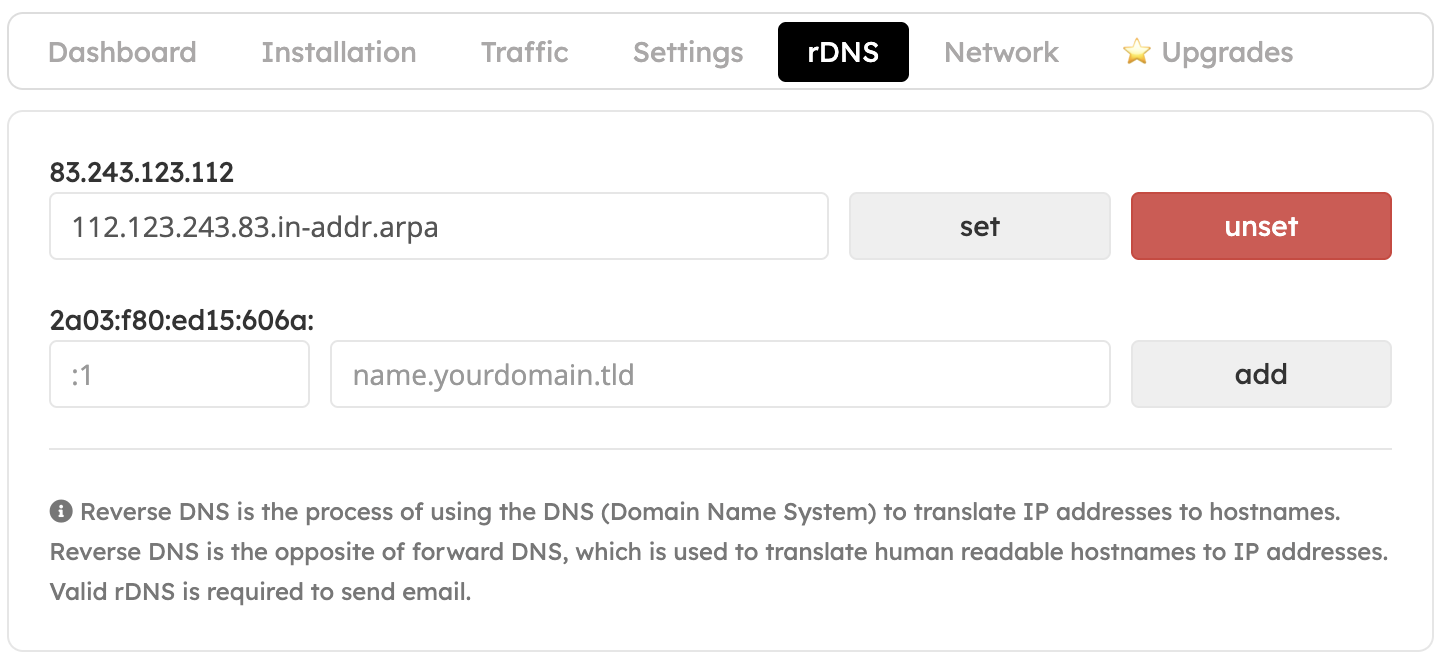
Sign in to the EDBB Control Panel, select your VPS under Services, and choose the rDNS tab.
Replace the default value with your hostname and click Set. Use Unset if you need to revert to the system default.
For each IPv6 address, enter the suffix (for example :1) and matching hostname, then press Add.
Confirm the updated entries in the list; edits take effect immediately on EDBB’s side.
***
## Verify - Troubleshoot
* Use `dig -x ` or an external rDNS checker after a few minutes—public caches may need time to refresh.
* If the hostname doesn’t appear, double-check that the forward record exists and matches exactly (including subdomain).
* Still seeing the old PTR? Clear local DNS caches or test from another network.
Reverse DNS updates for mail servers should be paired with SPF/DKIM updates.
Mismatched hostnames can cause outgoing messages to be rejected or flagged as spam.