> ## Documentation Index
> Fetch the complete documentation index at: https://docs.edbb.com/llms.txt
> Use this file to discover all available pages before exploring further.
# Choose your replacement with Bespoke IP Change
> Choose a replacement IPv4 from the available list in the EDBB cart. Select the old and new IP, review the one-time charge, then configure the replacement.
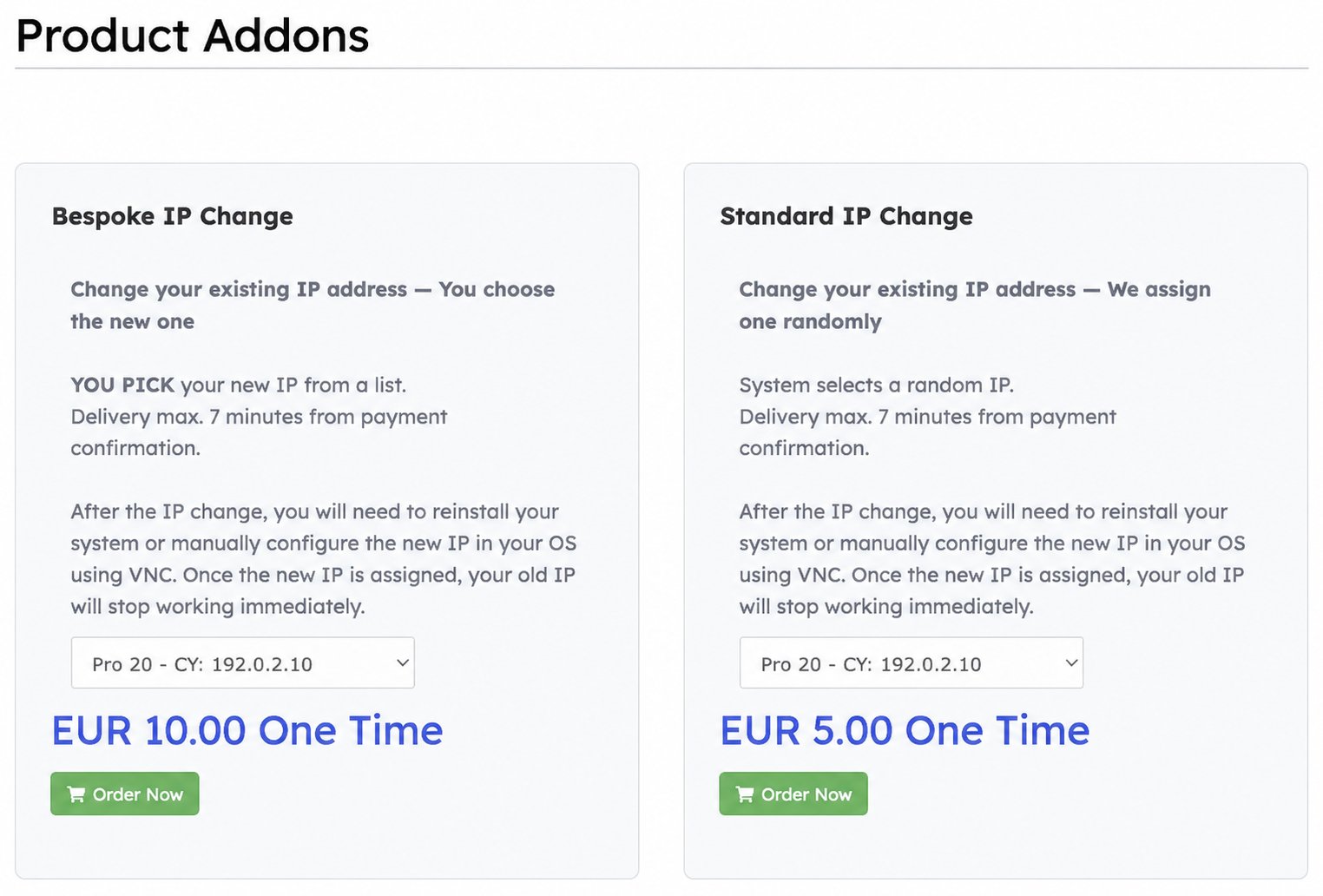
**Bespoke IP Change** replaces an existing VPS IPv4 with an address **you select from an available list**. Make the selection yourself in the cart before checkout. If you prefer automatic random assignment, use [Standard IP Change](/faq/ip-addresses/standard-ip-change).
The old IP stops working as soon as its replacement is assigned. Open the [VNC console](/vps-management/enable-vnc-server) beforehand and be ready to update the operating system's network configuration. Existing SSH, RDP and application connections to the old address will be interrupted.
## Find Bespoke IP Change
In the [EDBB Control Panel](https://my.edbb.com/clientarea.php), choose **Services → Order New Services → Product Addons**, or open [Product Addons directly](https://my.edbb.com/cart.php?gid=addons).
The listed charge is **EUR 10 one time**. Check applicable VAT and the final total in the order summary. This is an IP replacement; [ordering an additional bespoke IPv4](/faq/ip-addresses/order-bespoke-ip-address) is a separate request.
## Choose the old and new IP
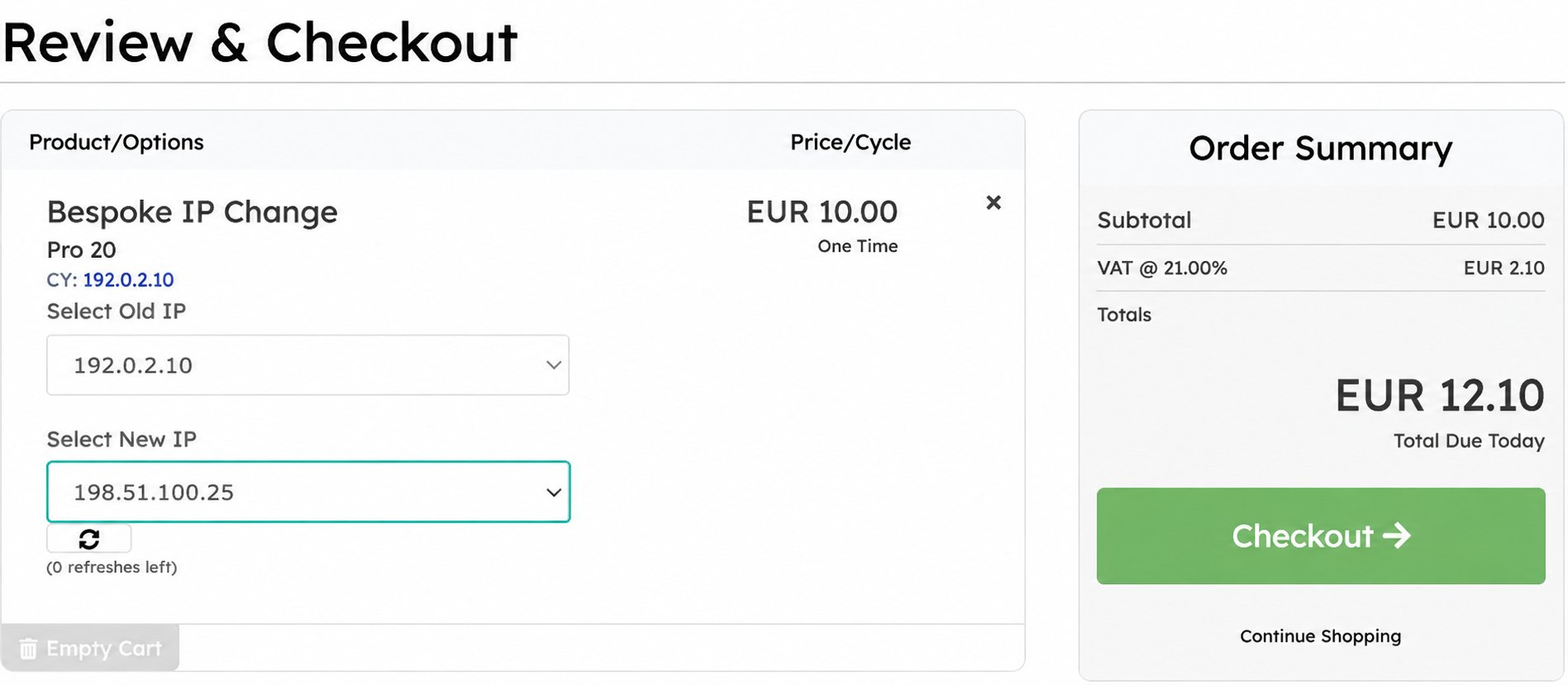
Select the service in the **Bespoke IP Change** card, checking its plan, location code and current address. Click **Order Now** to open the cart review.
Choose the existing IPv4 you want to replace. If your VPS has multiple addresses, check this field carefully.
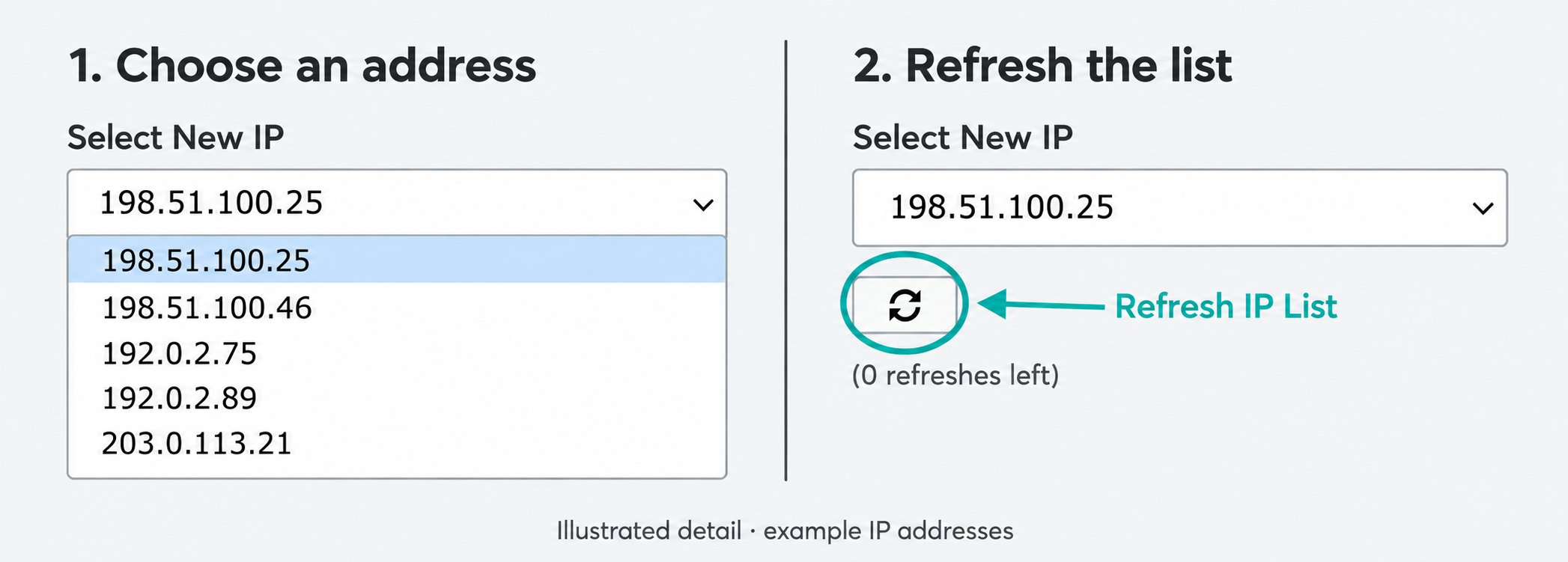
Open **Select New IP** and choose an address from the available list. The choices depend on inventory at your VPS location. You select an individual listed address, rather than entering an arbitrary IP.
Check both selections and the total. Click **Checkout**, review your billing information, choose a payment method, review the terms and complete the order when ready.
### Refresh the available list
The circular-arrow button below **Select New IP** is labeled **Refresh IP List**. The counter beside it shows how many refreshes remain. When refreshes are available, use it to request another list, then check your selected address again. Close the dropdown to reach the refresh button. After refreshing, open the dropdown again and choose from the updated list. The example shows **0 refreshes left**, meaning no refresh allowance remains. Choices are limited to available inventory; a particular prefix is not guaranteed to appear.
## After the replacement
The EDBB add-on page states delivery within **seven minutes of payment confirmation**. Check the assigned address and network settings in your VPS's **Network** tab.
Use VNC to configure the replacement in your operating system. Follow the [Ubuntu IP-change guide](/vps-management/change-ip-ubuntu-1804-to-2404) or [Windows IP-change guide](/vps-management/change-ip-windows) where applicable. Update DNS records, firewall allowlists, VPN endpoints and saved connections that use the old IP, then verify access through the replacement.
Reinstall only if you deliberately want a fresh system. [Reinstallation](/vps-management/reinstall-vps) erases the VPS disk; changing the network configuration manually preserves the installation.
An IP replacement does not guarantee access from a particular country, ISP or website, or a particular reputation or geolocation result.
See [Change your VPS IP address](/faq/ip-addresses/change-ip-address) to compare free, Standard and Bespoke changes.