> ## Documentation Index
> Fetch the complete documentation index at: https://docs.edbb.com/llms.txt
> Use this file to discover all available pages before exploring further.
# Extend a Windows Server disk
> Extend a Windows volume after an EDBB disk upgrade. Check free space, partition layout and backups before changing the filesystem.
Back up the VPS before changing partitions. This guide expands an existing Windows Server volume after a disk upgrade; it does not shrink the provider-allocated disk.
Confirm that contiguous unallocated space follows the target volume on the same disk. Do not delete EFI or recovery partitions to make the wizard available.
NOTE: To fully apply your upgrade, first shut down your OS, power off the server from the Control Panel, and then power it back on through the Control Panel. This process ensures the system recognizes the updated drive specifications.
Keep in mind, the additional space will remain unavailable until you resize your disk or partition. Do not format the existing volume when your intention is to extend it.
***
## How to Resize a Hard Drive
## Step 1: Accessing Server Manager
1. **Log in to the Server:**
Access your server via Remote Desktop or the local console.
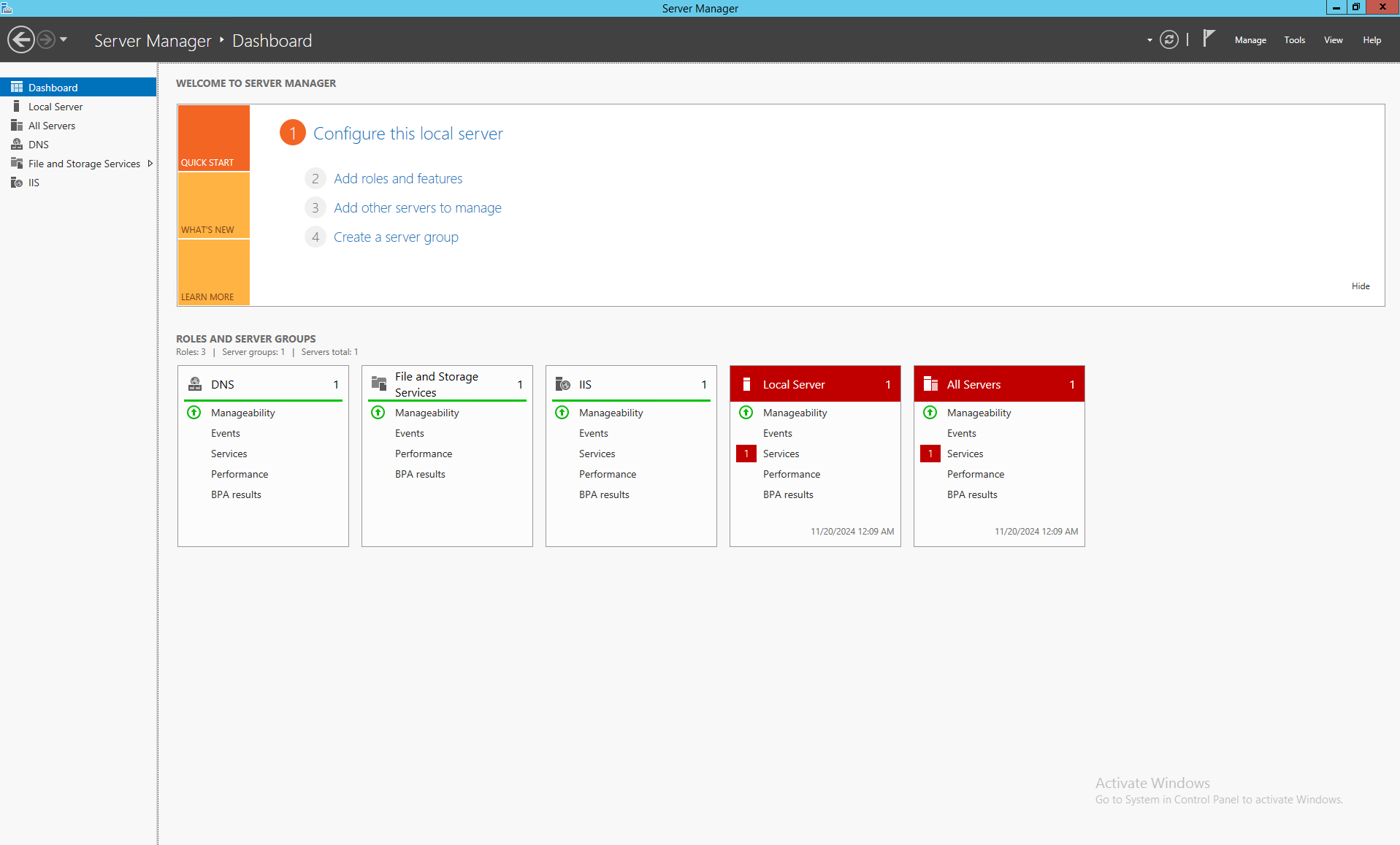
2. **Open Server Manager:**
* Click on the **Start** button and select **Server Manager.**
* If it doesn’t open automatically, search for `ServerManager.exe` and run it.
 ***
## Step 2: Navigate to File and Storage Services
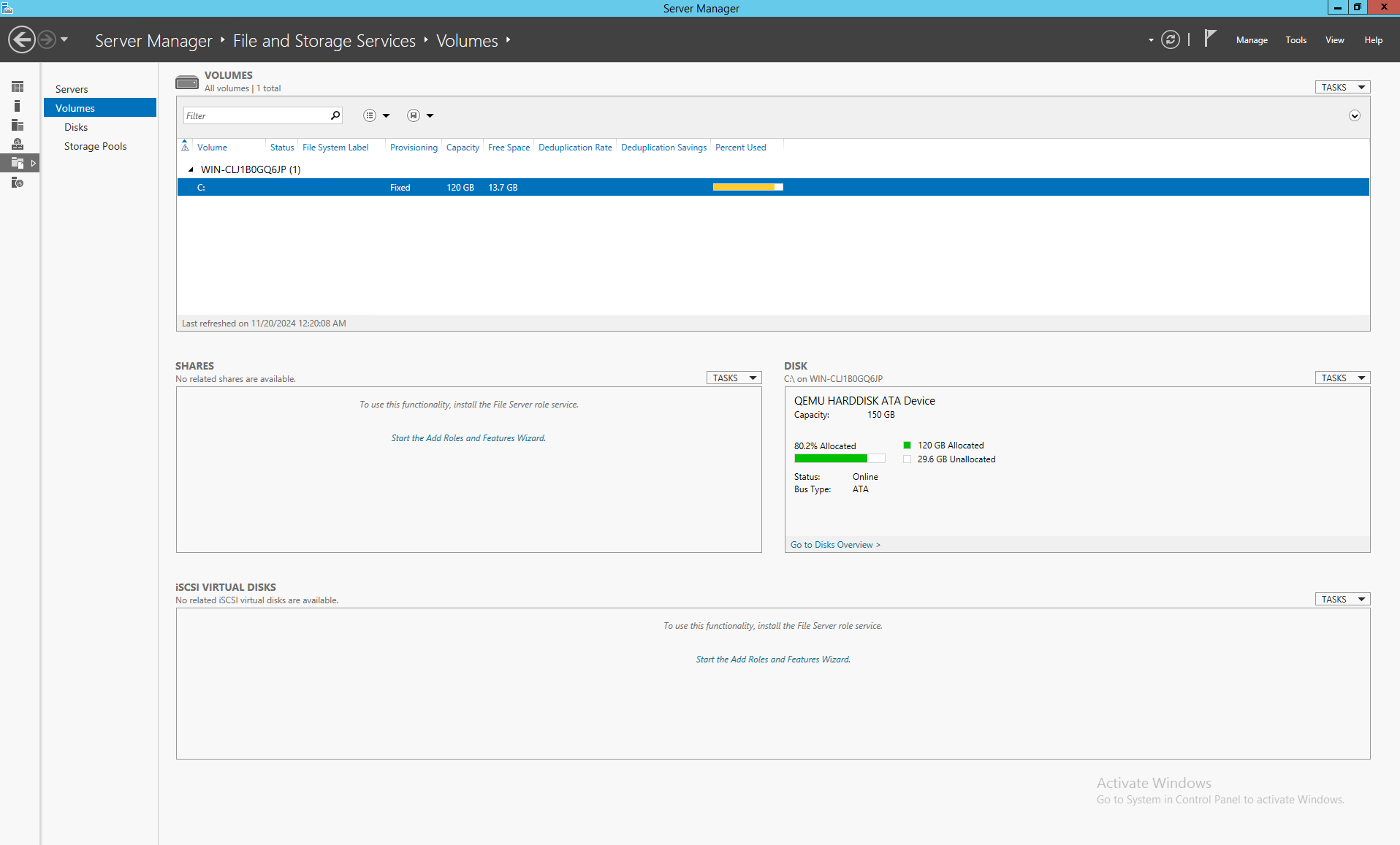
1. In the Server Manager dashboard, select **File and Storage Services** from the left-hand panel.
2. Click on **Volumes** to display all configured drives on your server.
***
## Step 2: Navigate to File and Storage Services
1. In the Server Manager dashboard, select **File and Storage Services** from the left-hand panel.
2. Click on **Volumes** to display all configured drives on your server.
 ***
## Step 3: Select the Target Volume
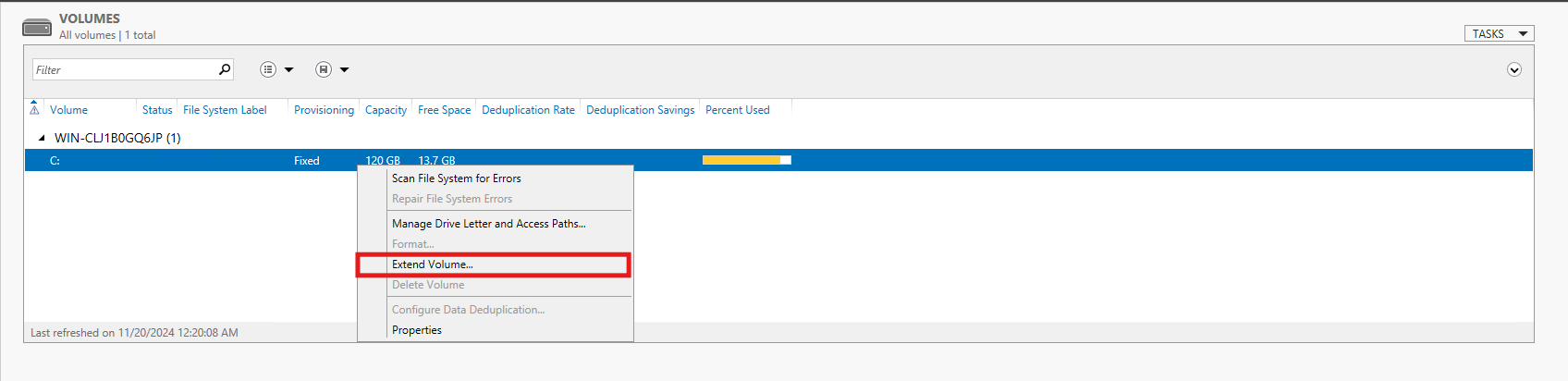
1. In the **Volumes** section, locate the drive you want to resize.
2. Right-click the drive and choose:
* **Extend Volume** to increase its size.
***
## Step 3: Select the Target Volume
1. In the **Volumes** section, locate the drive you want to resize.
2. Right-click the drive and choose:
* **Extend Volume** to increase its size.
 ***
## Step 4: Extending a Volume
1. If there’s unallocated space available on the disk:
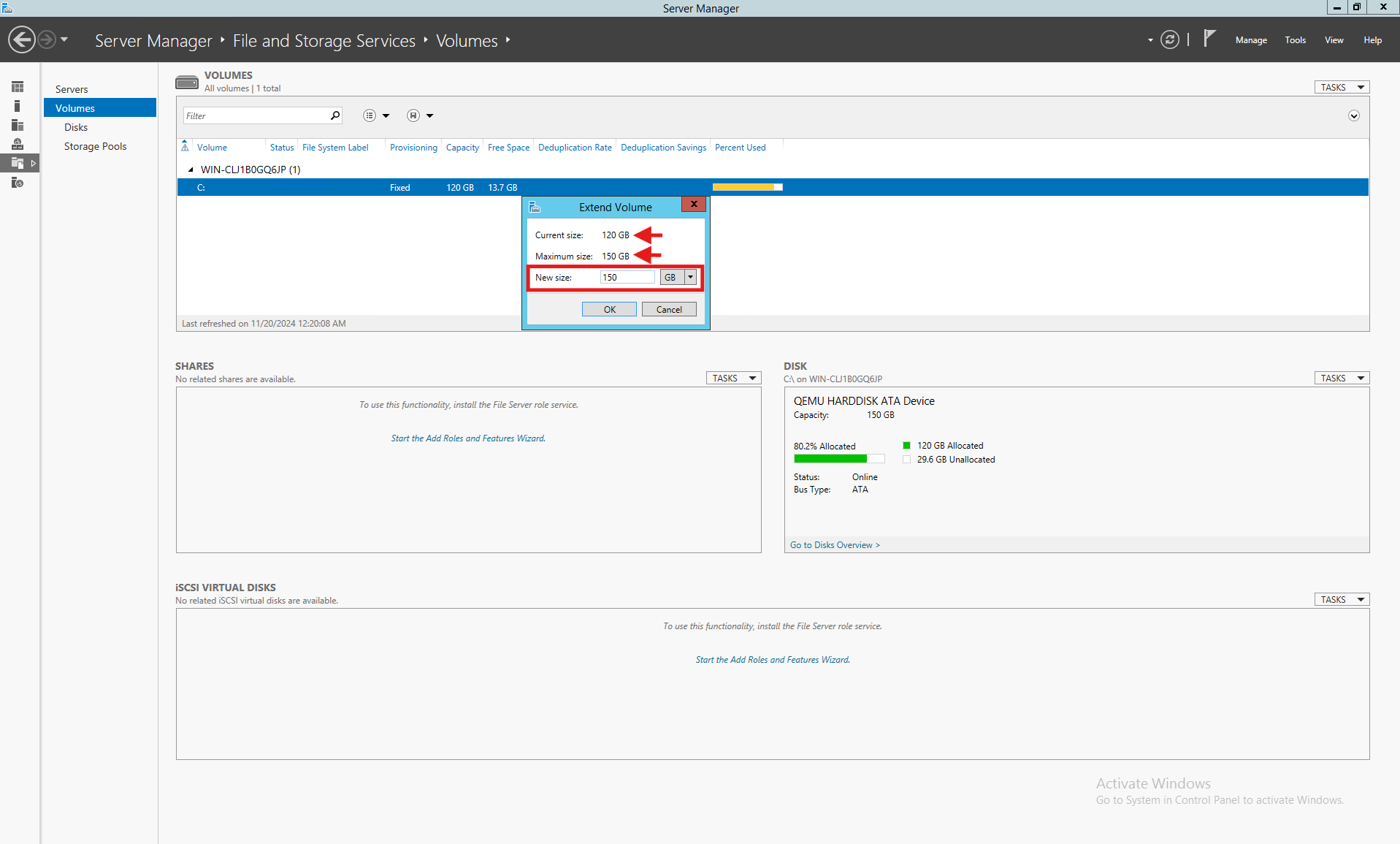
* Selecting **Extend Volume** will launch a wizard that allows you to allocate the unused space to the volume.
2. Specify the amount of space to add to the volume.
3. Click **OK** to apply the changes.
***
## Step 4: Extending a Volume
1. If there’s unallocated space available on the disk:
* Selecting **Extend Volume** will launch a wizard that allows you to allocate the unused space to the volume.
2. Specify the amount of space to add to the volume.
3. Click **OK** to apply the changes.
 ***
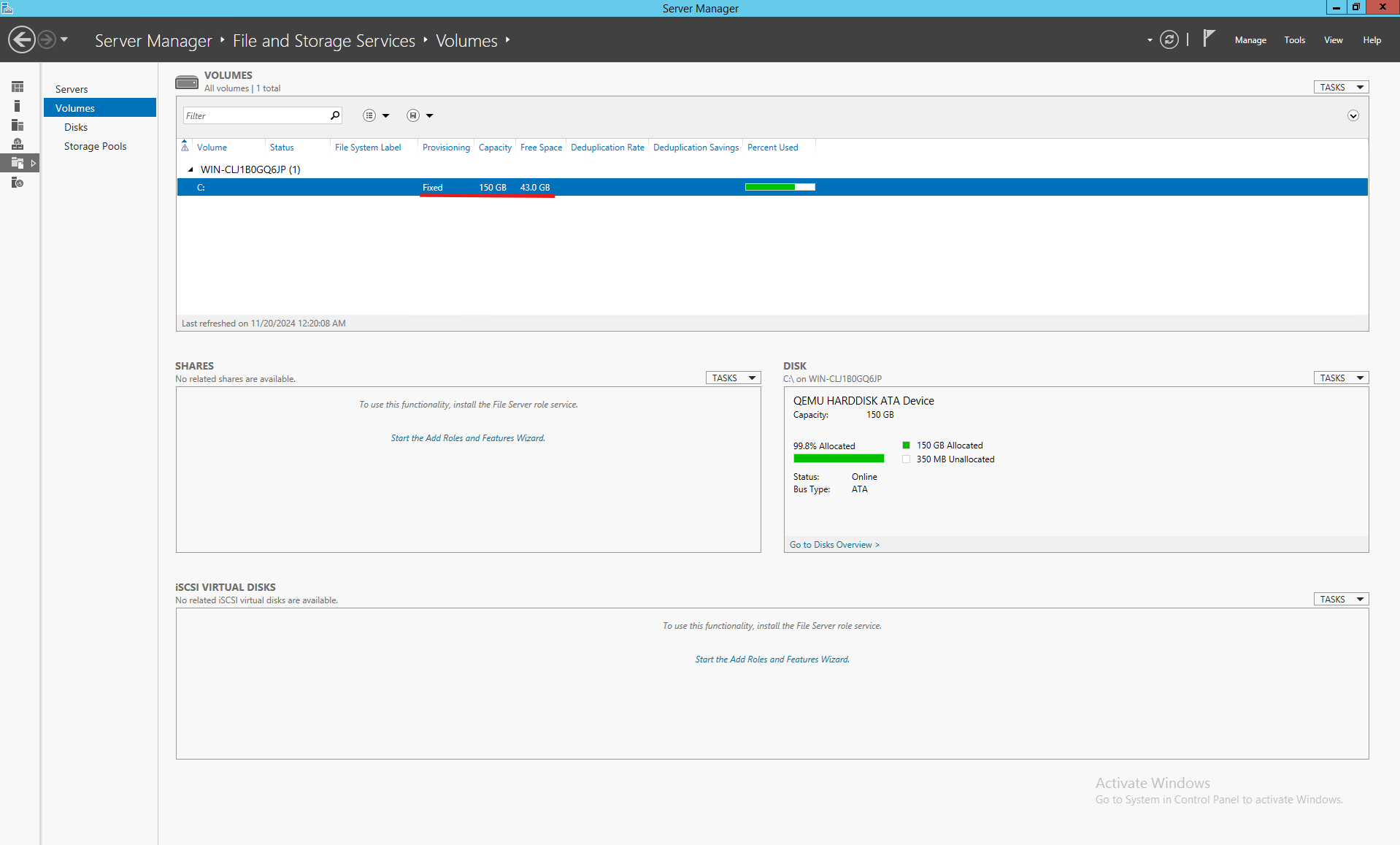
## Step 5: Verify changes
1. Return to the **Volumes** section in Server Manager to confirm the updated volume size.
2. For a more detailed view, you can use **Disk Management.**
***
## Step 5: Verify changes
1. Return to the **Volumes** section in Server Manager to confirm the updated volume size.
2. For a more detailed view, you can use **Disk Management.**
 ***
## Important Notes
* **Backup Data:** Always back up important data before making any changes to the disk.
* **Unallocated Space Requirement:** To extend a volume, unallocated space must exist on the same disk and be contiguous with the target volume.
* **In-Use Volumes:** If the volume is in use by active services or applications, a restart may be required.
***
## If Extend Volume is unavailable
Check that Windows sees the enlarged disk and that free space is directly after the intended volume. If another partition is in the way or the filesystem/layout is unsupported, stop and obtain a layout-specific recovery plan. Do not move or delete system partitions without a tested backup and a verified procedure.
***
## Important Notes
* **Backup Data:** Always back up important data before making any changes to the disk.
* **Unallocated Space Requirement:** To extend a volume, unallocated space must exist on the same disk and be contiguous with the target volume.
* **In-Use Volumes:** If the volume is in use by active services or applications, a restart may be required.
***
## If Extend Volume is unavailable
Check that Windows sees the enlarged disk and that free space is directly after the intended volume. If another partition is in the way or the filesystem/layout is unsupported, stop and obtain a layout-specific recovery plan. Do not move or delete system partitions without a tested backup and a verified procedure.